-
Step 1: Note: the author has a Windows machine, thus these instructions are for Windows.
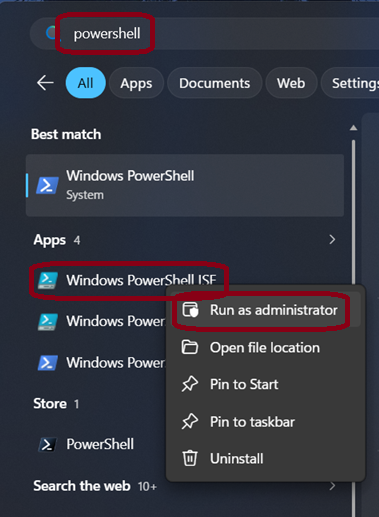
In the Windows search bar, type in "PowerShell". You should see an option called "Windows PowerShell ISE."
Right click on that option and select "Run as Administrator."
-
Step 2: You may be prompted with a window to allow the app to run as admin, if so,
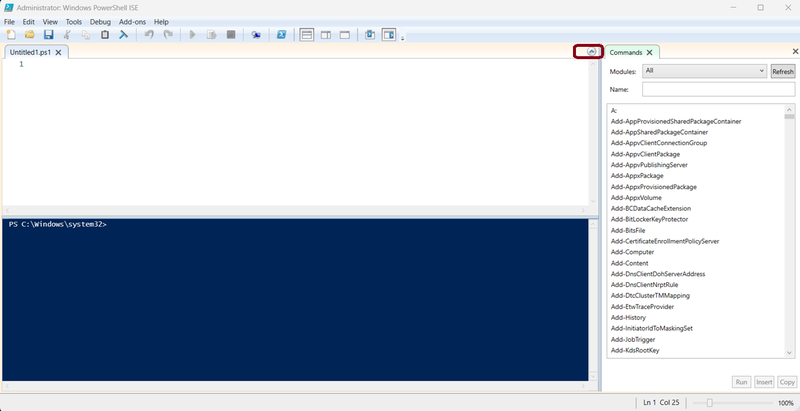
click "Yes." You should see the powershell screen. If it is all blue, click the arrow next to the
"script" button to show the script pane (see screenshot below).
-
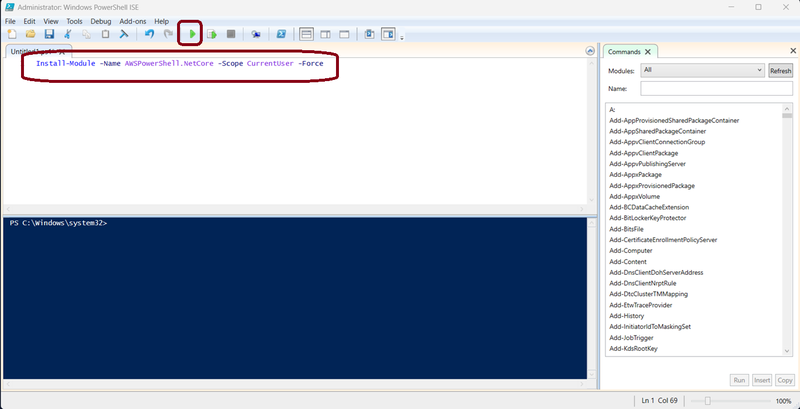
Step 3: In the script pane, type in the following command to install AWS PowerShell:
Install-Module -Name AWSPowerShell.NetCore -Scope CurrentUser -Force
-
Step 4: You may be prompted to install the NuGet provider. Click "Yes" to continue.

-
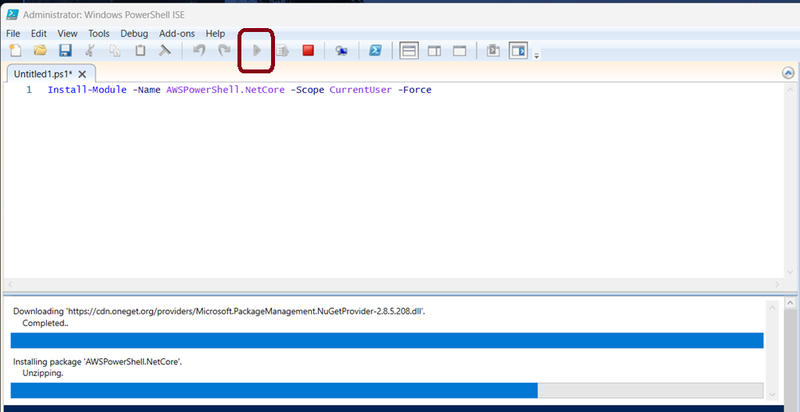
Step 5: You should see an installation progress bar. Note that installation may take
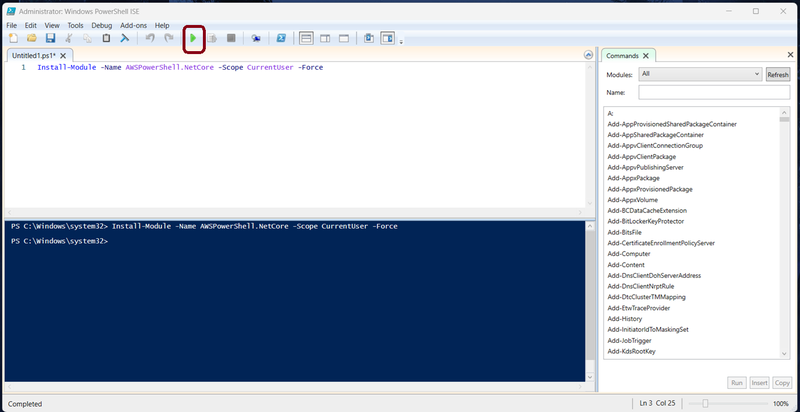
a few minutes. Also note that installation is not complete until the "Run Script" button is
no longer grayed out.
-
Step 6: Once done, the "Run Script" button should no longer be grayed out.
-
Step 7: You can now close the PowerShell window. If you are asked if you want to
save the script, click "No." In VS Code, open a new terminal session and run the command
"Get-AWSPowerShellVersion" to confirm that it is installed. Note, if you run into issues,
you may need to reboot your computer. This completes this guide.
