This step by step guide will cover how to set up a new AWS Account. The results of this guide will be used
by future step by step guides to deploy various architectural solutions using AWS services. This guide is
designed for a first time user and may not be of interest to experienced users. Note the author has
hidden certain fields (email addesses, account names, codes and credentials, etc.) for security purposes
using colored boxes.
Link to YouTube video: coming soon.
Prerequisits:
Ensure you have a valid email address.
Ensure you have a smartphone with a Two Factor Authentication tool such as Microsoft Authenticator.
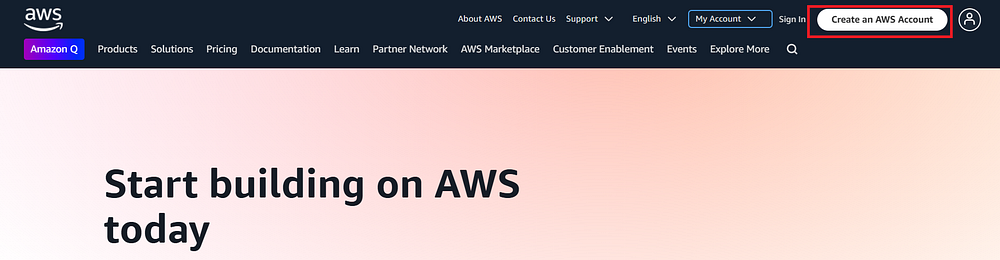
Step 1: Navigate to aws.amazon.com and click the "Create an AWS
Account" button on the top right of the screen. Note that if the button says "Sign In to the Console," it is
likely you have previously logged into an existing AWS account on the device you are using.
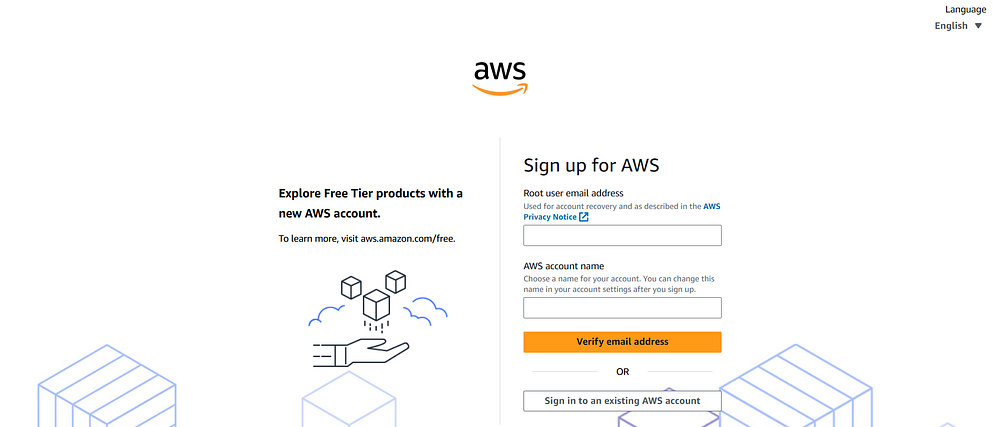
Step 2: You should be presented with a screen that allows you to enter the email address for your
account as well as an AWS account name. Enter your email address in the "Root user email address" field. In
the "AWS account name" field, enter a name that describes your account. This could be the name of a project
or a business you plan to build on AWS, or something else that will allow you to identify what this account
is for. Once you enter the information, click the "Verify email address" button.
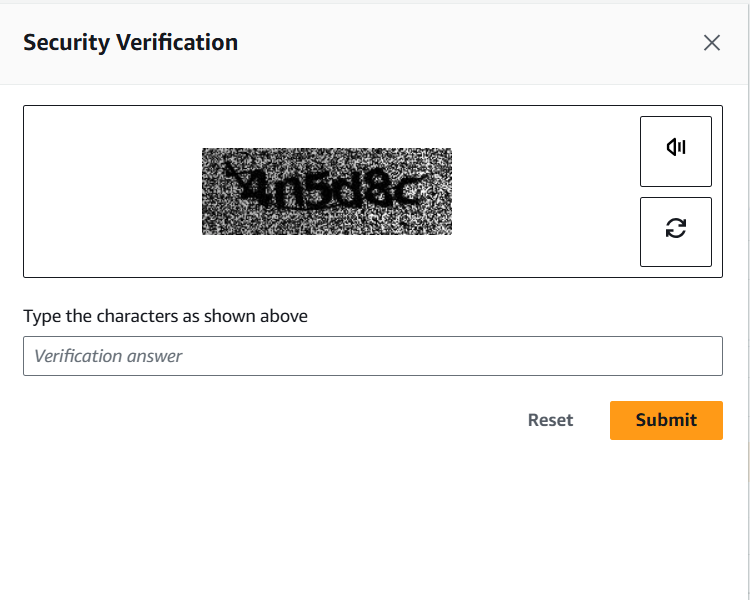
Step 3: You may be presented with a security verification prompt. Complete it to continue and click
"Submit."
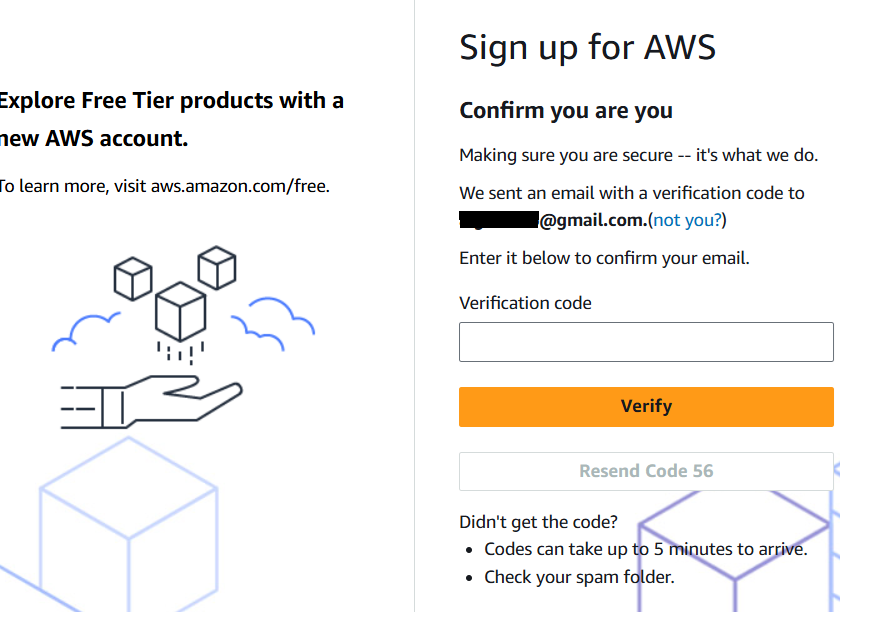
Step 4: You should receive a prompt asking you to confirm a code which was sent to the email you used
to sign up. Get that code from your email, enter it, and click "Verify."
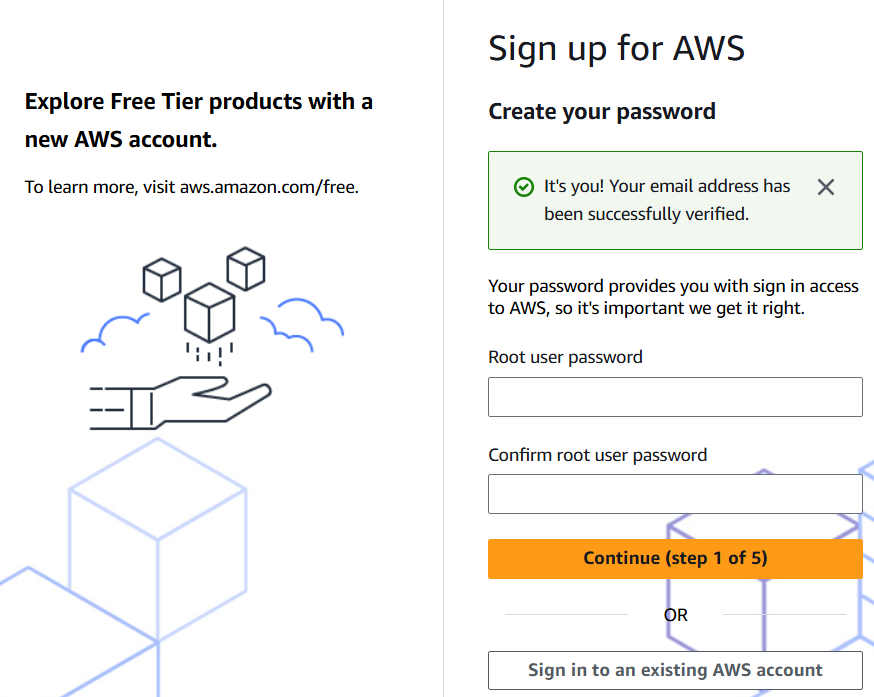
Step 5: If the verification is successful, you should see a "It's you" message in a green box. You
can
now enter a root password and click "Continue (step 1 of 5)" to proceed.
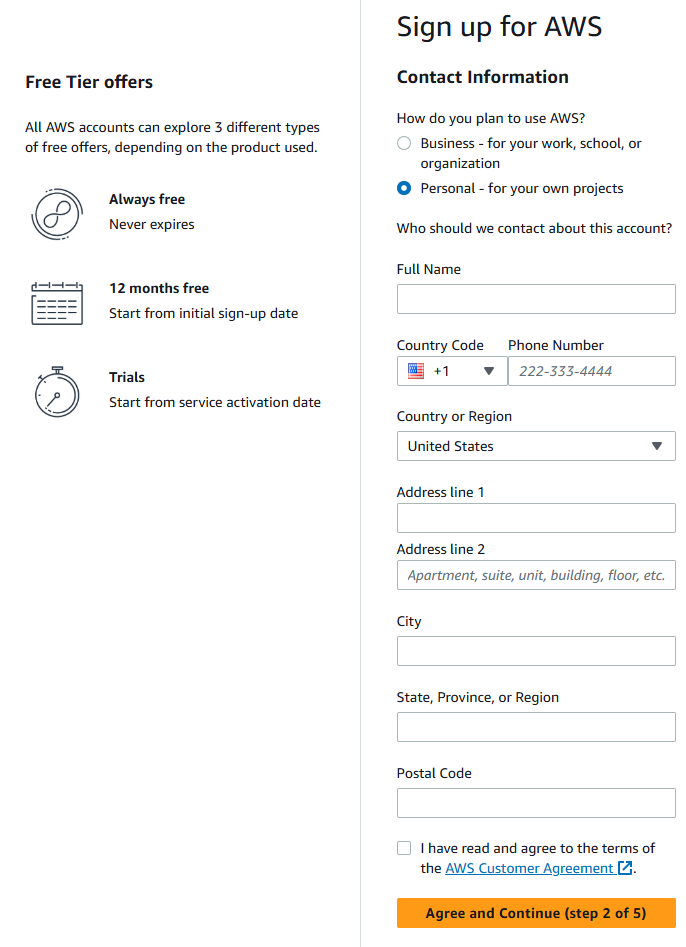
Step 6: Select if this is for business or personal use. The author selected personal use. Enter the
additional information requested. Once done, click the "Agree and Continue (step 2 of 5)" button.
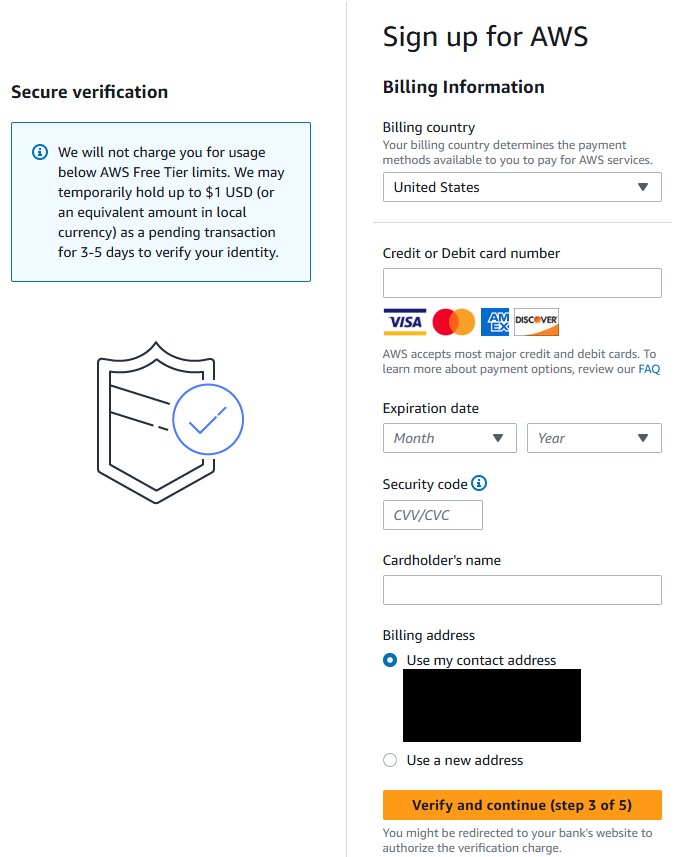
Step 7: Enter the requested billing information. Note that depending on which AWS Services you use,
there may be charges. This article includes steps (below) to set up billing alarms. Once done, click the
"Verify and continue (step 3 of 5)" button.
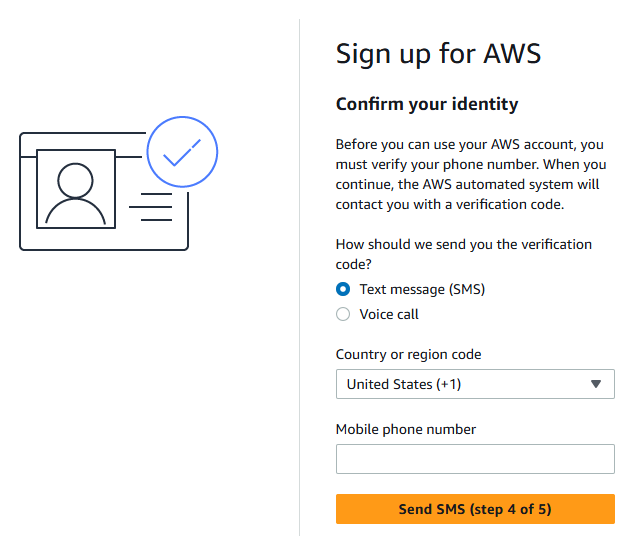
Step 8: You will be prompted to enter a phone number to confirm your identity, either via text or
phone call. Enter your phone number and choose either option. For the purposes of this guide, we are using
text. Once you enter your phone number, click the "Send SMS (step 4 of 5) button.
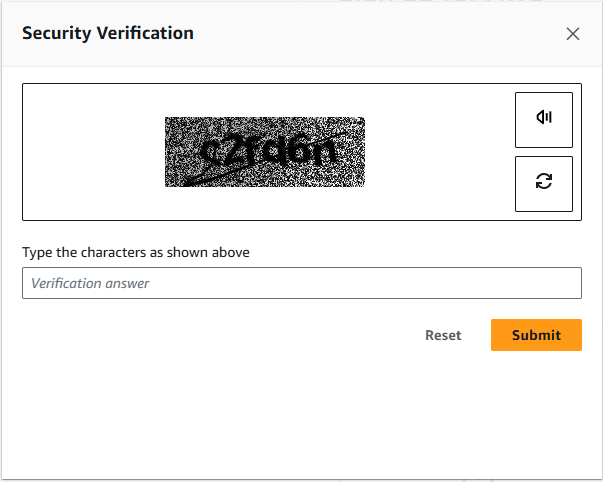
Step 9: You may be prompted for another security verification. Complete the verification and click
"Submit."
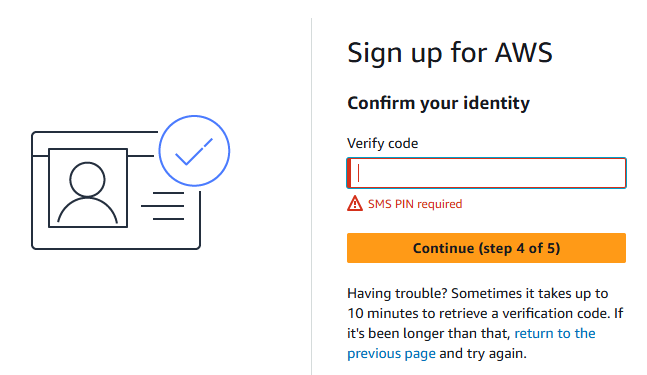
Step 10: Check your phone (it may take a few minutes for the text to arrive) and enter the
verification code sent to you. Click the "Continue (step 4 of 5)" button to proceed.
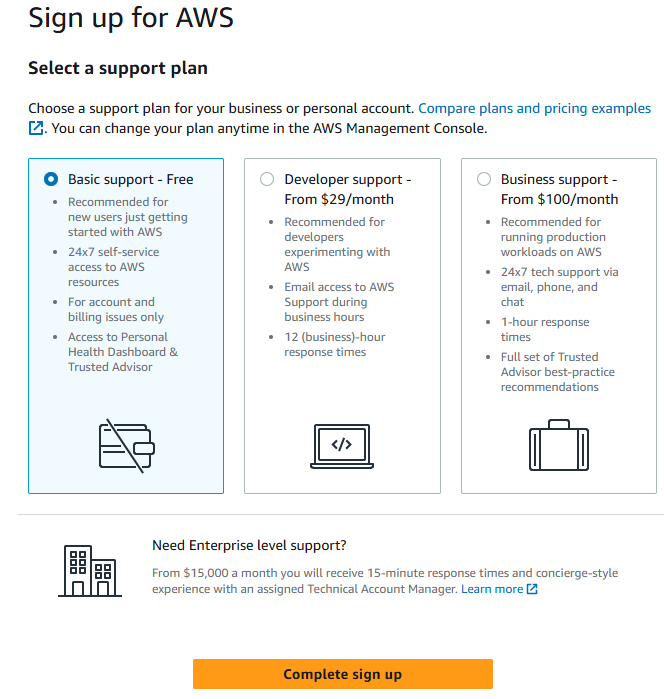
Step 11: Choose a support plan. If you are just starting out with AWS, you may want to start with the
"Basic support - Free" plan and, as you add services / learn about AWS, modify your plan as your needs
evolve. Click the "Complete sign up" button to complete the sign up process.
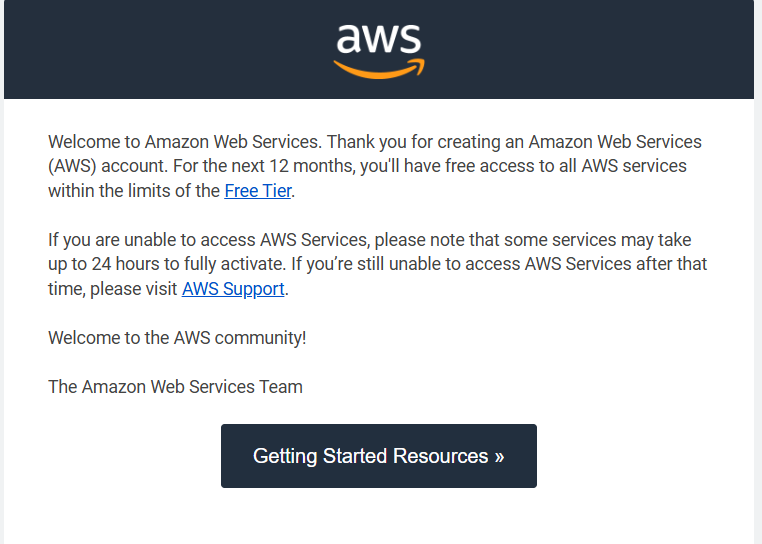
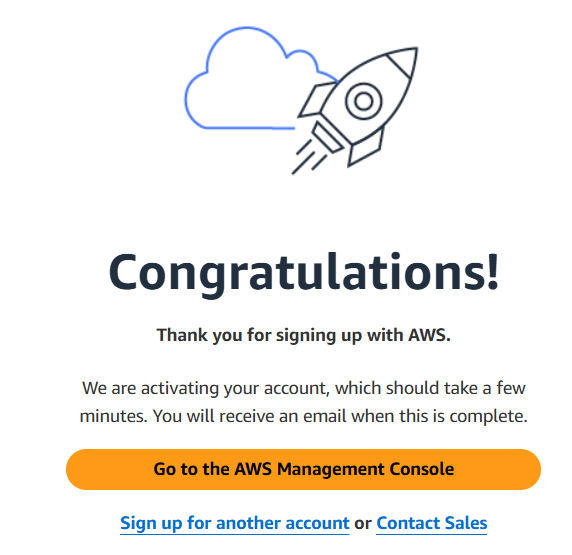
Step 12: You should see a "Congratulations" screen similar to the one below. You can now sign into
your AWS account. You can click the "Go to the AWS Management Console" button to go to the AWS Console. The
next time you navigate to aws.amazon.com with your browser, you may be prompted to sign in (assuming your
browser is configured to appropriately).
Step 13: Note that you may receive multiple emails welcoming you to AWS. Please read these emails,
they provide additional information about your account tier, costs, services, support level, etc.
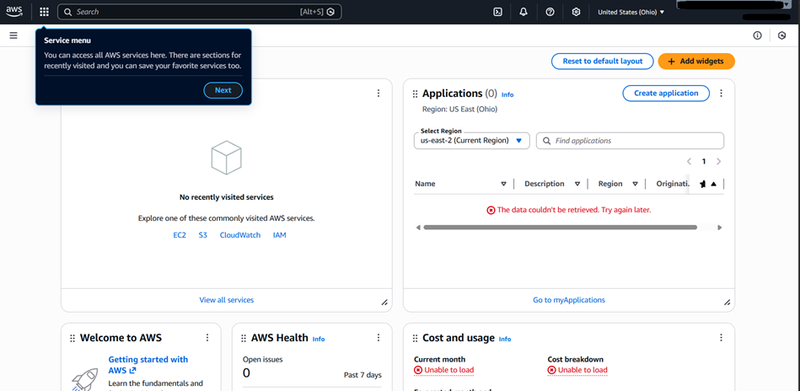
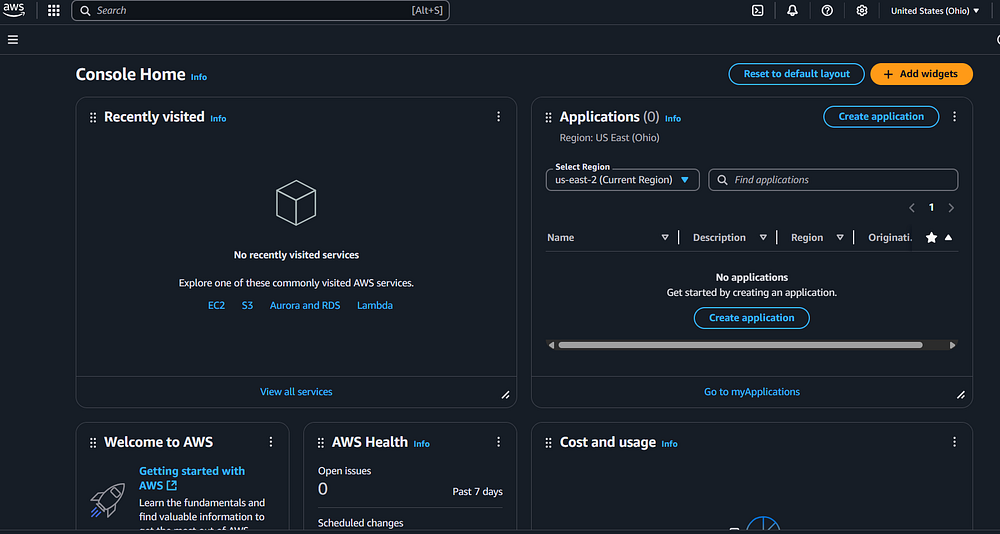
Step 14: You should see a screen similar to the below the first time you log in. There are several
sections in this screen, and navigating AWS may take some time. This tutorial will not cover all the
functions and options, those are documented in the AWS
Documentation repository. The author recommends that first time AWS users take some time to navigate
the console and familiarize themselves with the various options before proceeding.
Step 15: While the AWS Account is now set up and working, there are a few other tasks that should be
done immediately. First, two-factor authentication should be enabled for the root account to help increase
security. Second, an admin (non-root) AWS Account should be created and two-factor authentication should be
enabled for this account. Logging into AWS with the root account is not recommended, so make a second
account for daily use ASAP. Third, billing alarms should be set up to reduce the risk that charges go
undetected for an extended period of time. The steps in the sub-sections below will cover these tasks.
Sub-Section - Enable Two Factor Authentication:
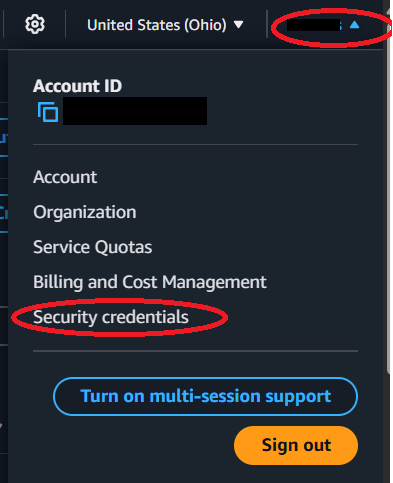
Step 16: On the top right portion of the screen, you should see the name of the account, which is the
name you provided when you set it up. Click the drop down arrow, and you should see an option called
"Security Credentials." Click this option. Note that while you are on this screen, you may want to make a
note of your Account ID and store that number in a secure location as you may need this information later.
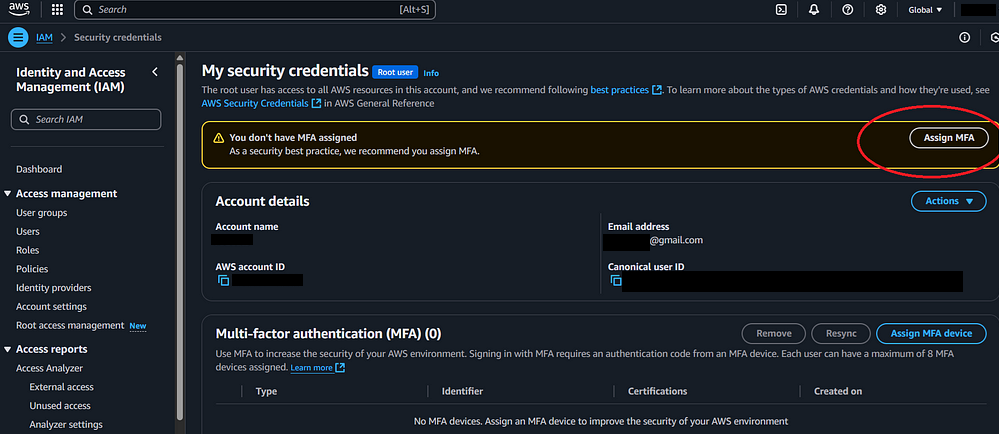
Step 17: On the "Security Credentials" screen, you should see a prompt indicating that you do not
have Two Factor authentication set up. Click the "Assign MFA" prompt to begin the process.
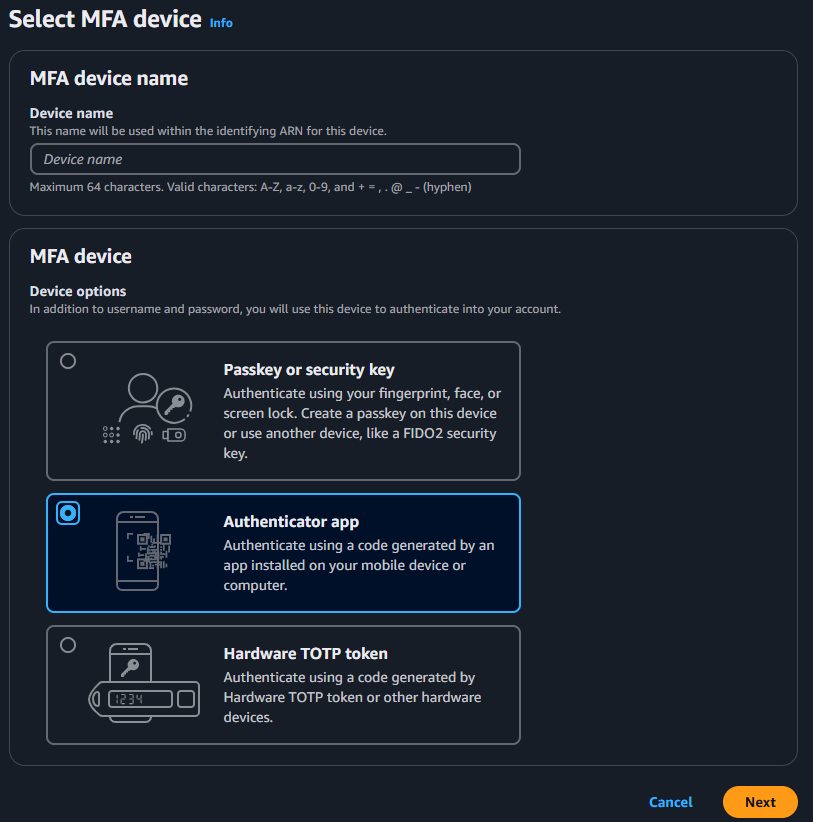
Step 18: Enter a device name that will allow you to track this MFA device. Note - if you have
multiple
accounts on your MFA application, choose a name you can recognize, as you will need to enter this code later
to access your AWS account. Choose an option for MFA - for the purposes of this article, we will use the
"Authenticator app" option.
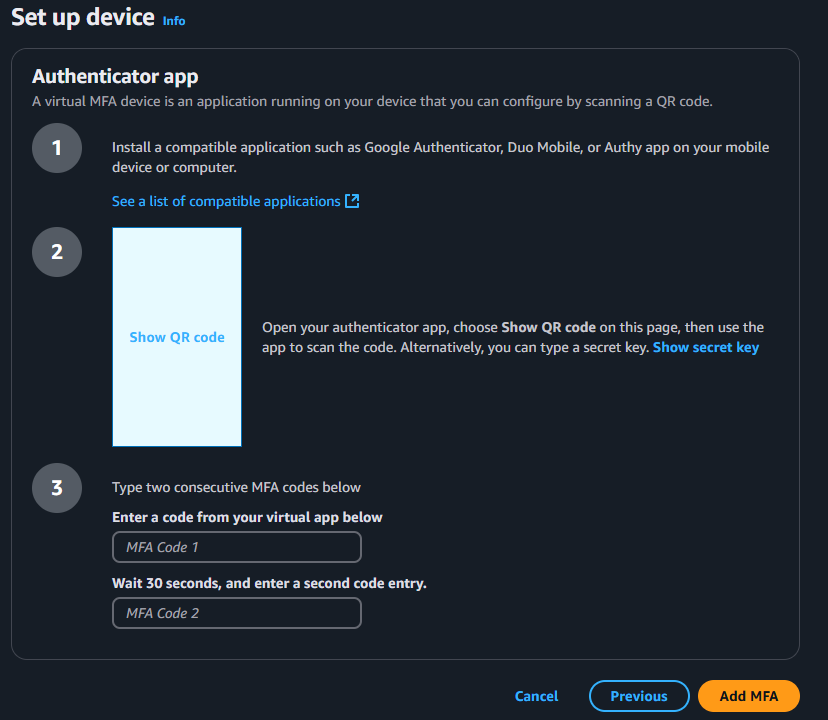
Step 19: On the screen, you will need to the "Show QR Code" option and scan that code with the MFA
software application on your phone. There are multiple MFA software options, the author uses Microsoft
Authenticator, but there are others. Note that adding a new entry to the MFA software varies, so please
follow the guidelines provided by your MFA software vendor. Once you add the entry to your MFA application,
you should enter the codes that show up in the "MFA Code 1" and "MFA Code 2" boxes on the AWS Console
screen. Note that it may take 30 seconds for the MFA application to "refresh" and provide a new MFA number.
Once you have entered both numbers, press the "Add MFA" button.
Step 20: You should be taken back to the Security Credential screen and see a green banner similar to
the one below if this was successful.
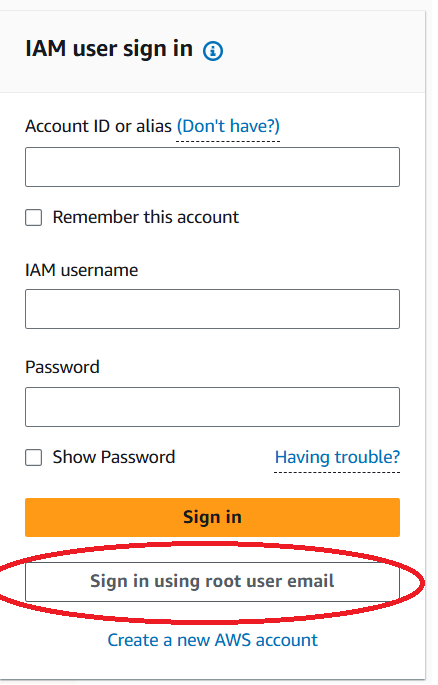
Step 21: Note that the next time you want to sign into this account, you will need to choose the
"Sign in using root user email" option.
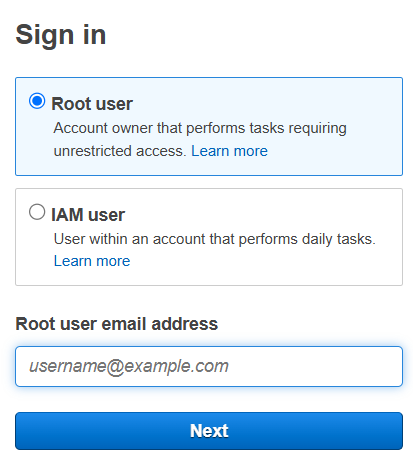
Step 22:You can now enter the root user email.
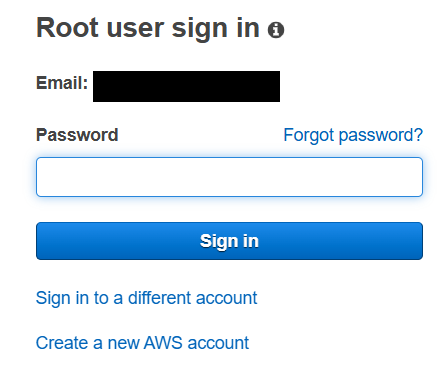
Step 23: You will then be taken to another screen to enter your root user password.
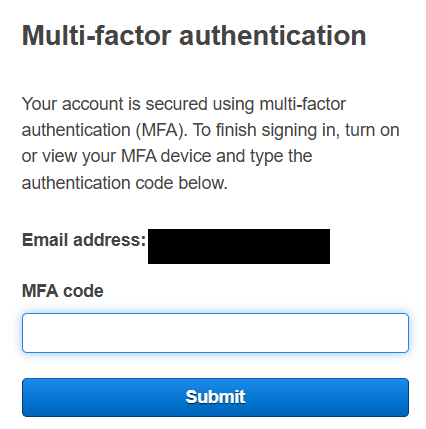
Step 24: Finally, you will be taken to a third screen to enter your MFA code. You can now sign into
your root account.
Sub-Section - Setting up a second (non-root user) administrator account:
Step 25: As discussed previously, you should not use the root AWS account for day to day work.
Instead, you should create and administrator (admin) account and use it. If you have not done so,
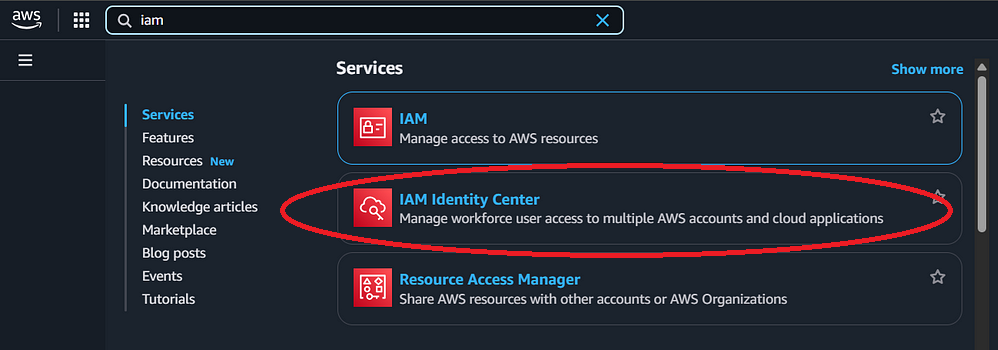
log into your root account (see above). Once in, use the search box on the top right and type "IAM." This
will bring up a list of IAM services. Click on the "IAM Identity Center" service to navigate to the service
page. Note: it is recommended that user access be managed in IAM Identity Center. If you go to "IAM", click
on "Users," and add a new user, you will be prompted to use IAM Identity Center. If you follow that prompt,
you will end up in the "IAM Identity Center" service.
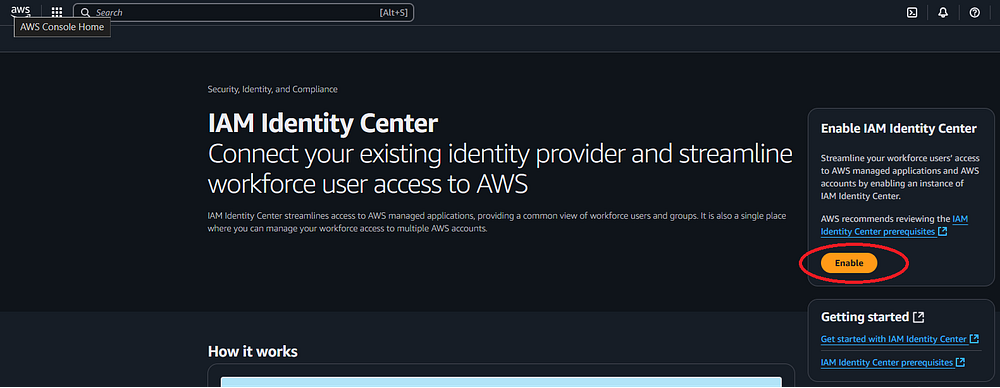
Step 26: If you have never enabled AWS Identity Center, you will be asked to enable it. Click the
"Enable" button on the right side of the screen.
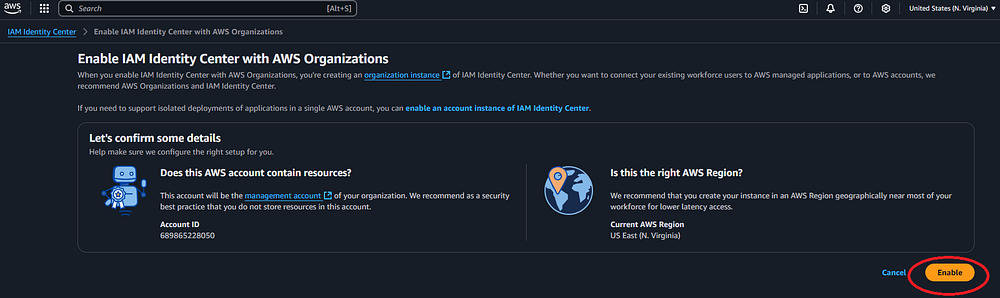
Step 27: You will be asked to confirm some information. The author used the defaults provided below.
Click "Enable."
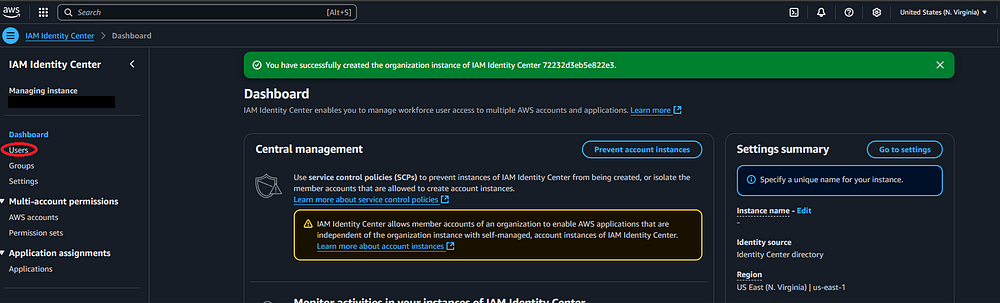
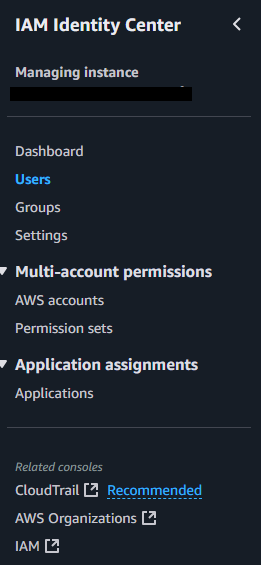
Step 28: You should be taken to the Identity Center Dashboard, now that you have activated it. On the
left hand side of the screen, navigate to "Users" to create a new admin user.
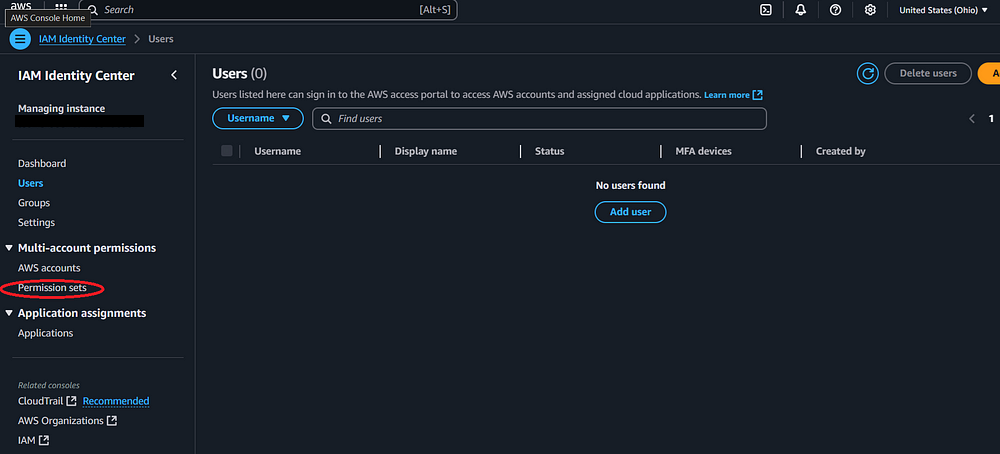
Step 29: As this is a new AWS account, there should not be any users present. Before we add a new
user, there are a few other things we need to set up. First, we need a Permission Set. Click on the
"Permission sets" option on the left side of the screen.
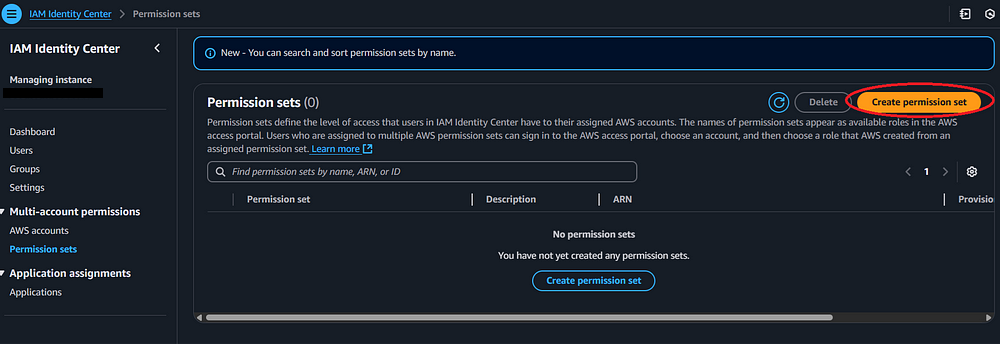
Step 30: Assuming you have not yet created a permission set, click on the "Create permission set"
option.
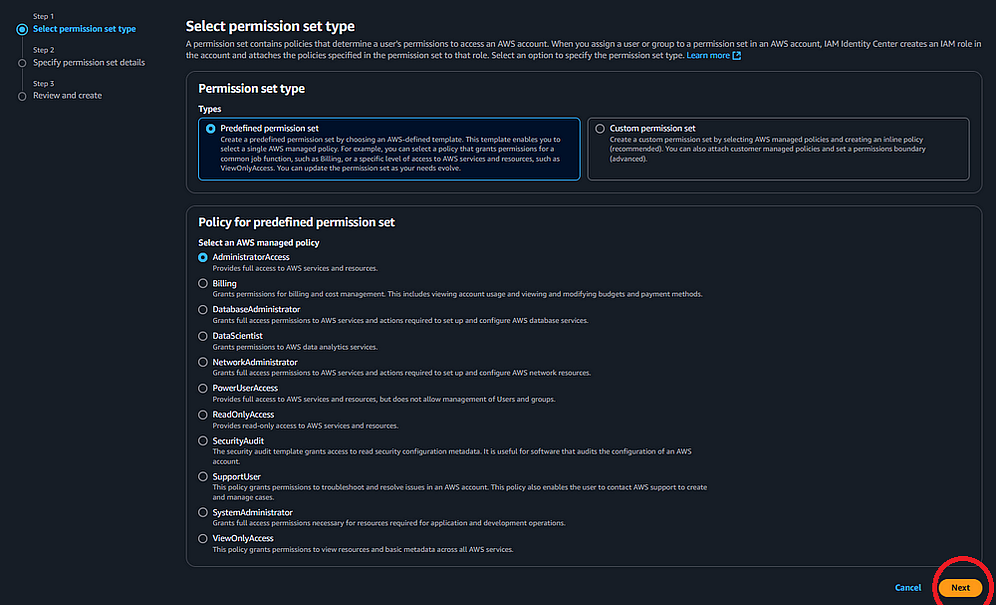
Step 31: If not already chosen, pick the "Predefined permission set" and choose "AdministratorAccess"
for the AWS managed policy, then click "Next."
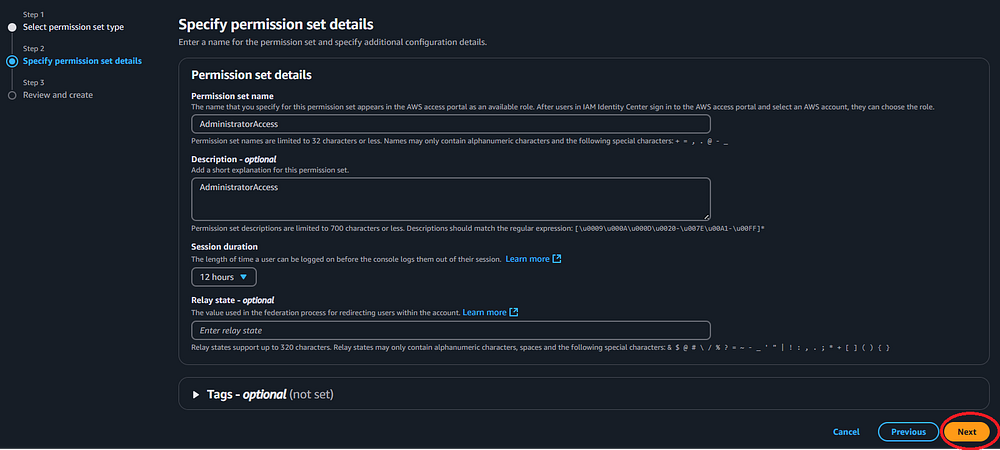
Step 32: You can leave the default name or change it. You can enter a description (the author copied
the default name). You can leave the default session duration or change it; the author made it 12 hours.
Click Next.
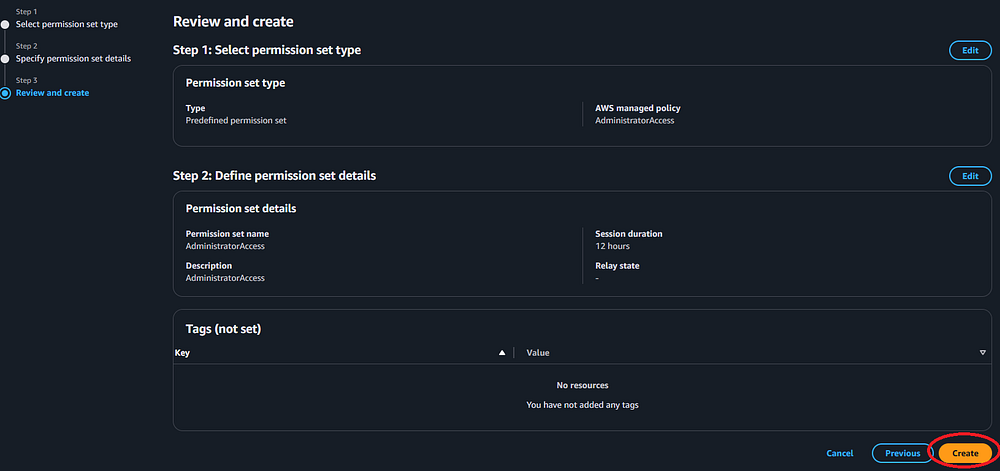
Step 33: Review your configuration and click "Create."
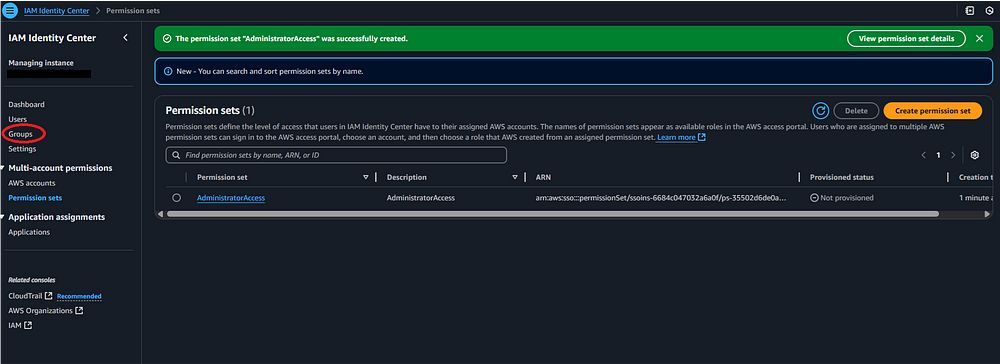
Step 34: Now that the Permission Set is created, we can create an Admin group that uses it. Click on
the "Groups" option on the left side of the screen.
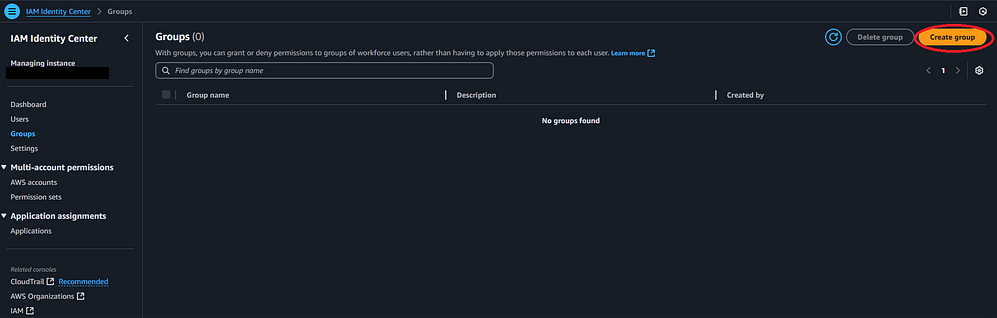
Step 35: Assuming you have not created any Groups yet, you should see the IAM Identity Center Groups
screen with no groups. Click the "Create Group" button.
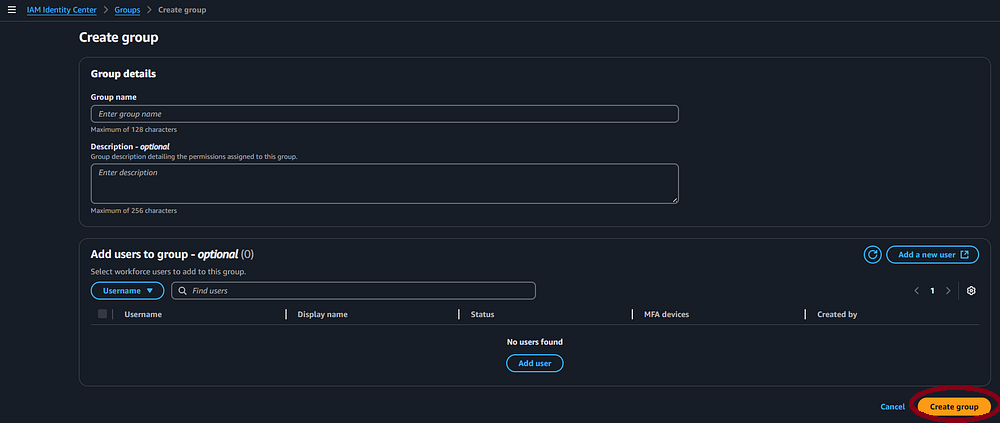
Step 36: Enter a group name and description. In this case, it will be an "Admin" Group that will be
associated with the AWS Account Name entered above. The author used the format AWS Account Name entered
above appended with "Admin" but you can use something more descriptive as needed so you know what the group
is for. Click the "Create Group" button.
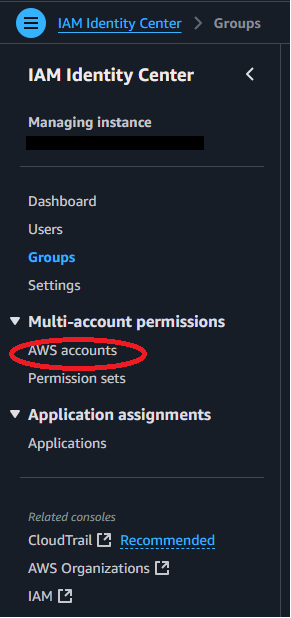
Step 37: With the Group and Permission set created, we can now Associate the AWS Account (the name
created in Step 2) with both of these objects. Click the "AWS accounts" option on the left side of the
screen.
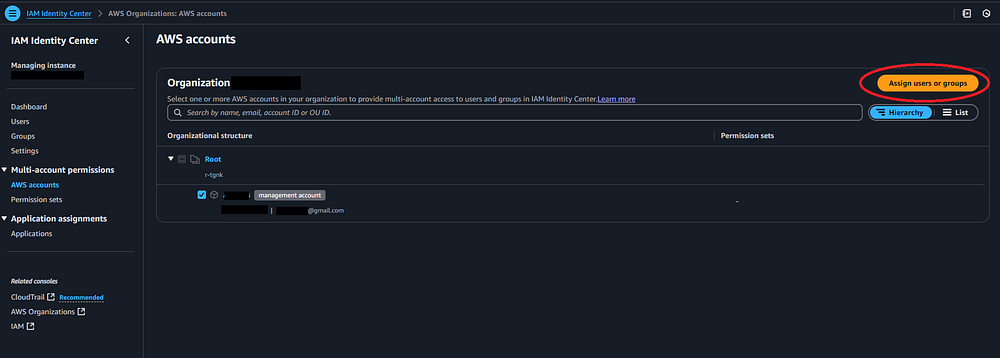
Step 38: You should select the check box for your AWS account. Note - the author has covered some
information in the screenshot below. Once you select that checkbox, click the "Assign Users or Groups"
button.
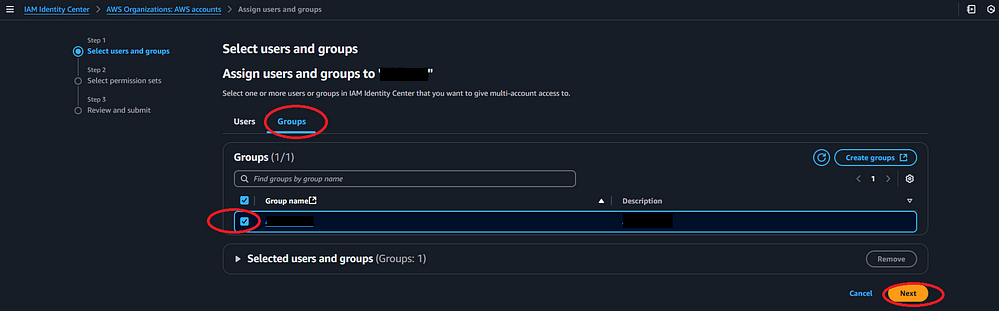
Step 39: Ensuring the "Groups" tab is selected, choose the group you created in the steps above.
Click "Next."
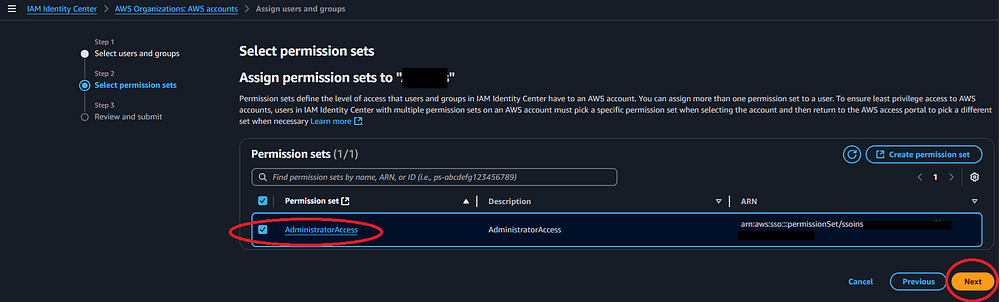
Step 40: Select the "AdministratorAccess" permission set and click "Next."
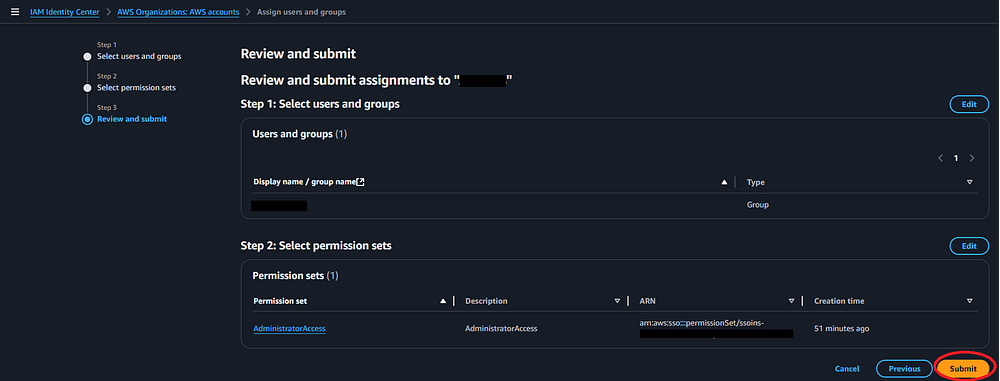
Step 41: Review the options and click "Submit."
Step 42: You should get a success message indicating the changes have been made. You can now select
"Users" from the left side navigation panel and create a user.
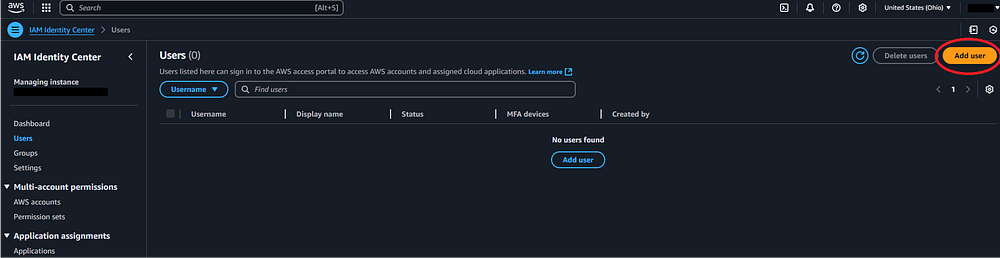
Step 43: If you have not added any users, there will not be any yet. Click the "Add User" button on
the right side of the screen to add a new user.
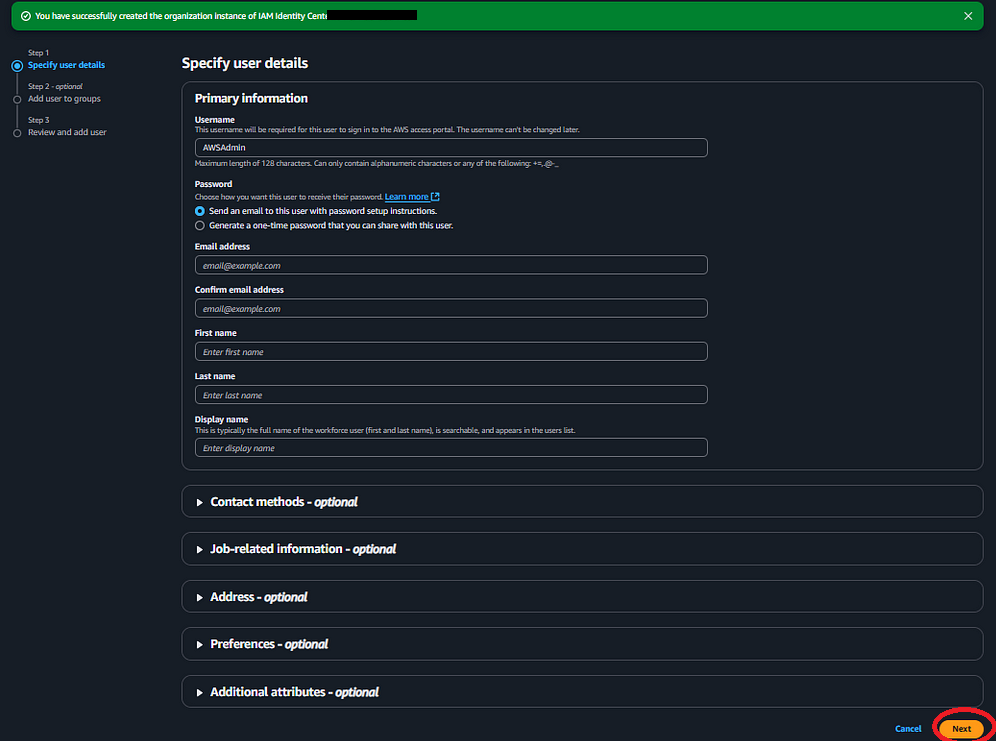
Step 44: Fill out the form to add a new user. The author used the username format of the AWS Account
Name entered in Step 2 above appended with "Admin" but you can use something more descriptive as needed so
you know what the account is for. You will need to fill in the first and last name fields. The author used
AWS Account Name for the first name, and the word "Admin" for the last name. This will auto-populate the
"Display Name" field, which you can modify if needed. You can fill in the optional information as needed,
the author did not do so. Note - you can either send an email with password setup instructions, or have AWS
create a one-time password you can use to log into the account, which you will then need to change. The
author used the "generate a one time password" option. Click the "Next" button at the bottom right of the
screen when done.
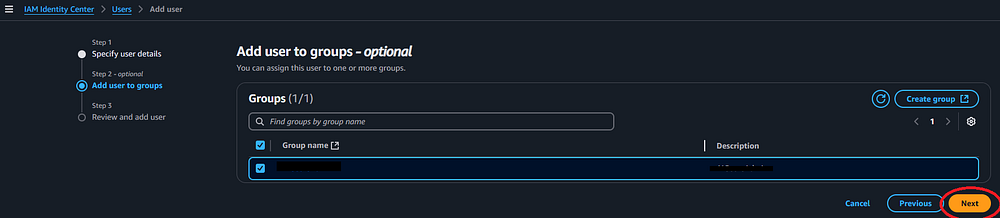
Step 45: You will be prompted to add this user to a group. Choose the Admin group you made in the
steps above. Click "Next."
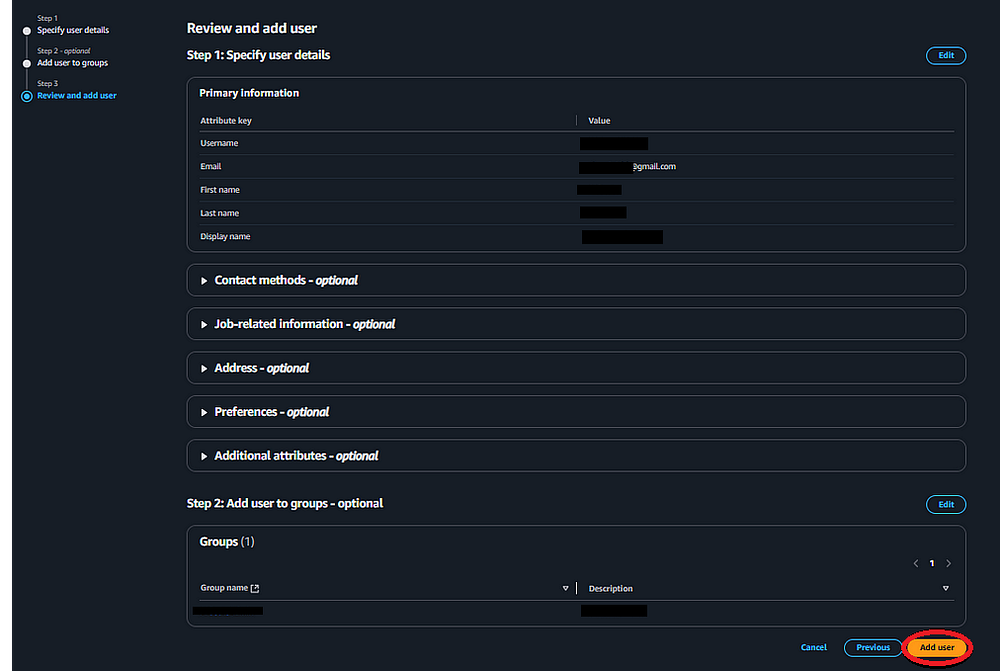
Step 46: Review your changes and click "Add User."
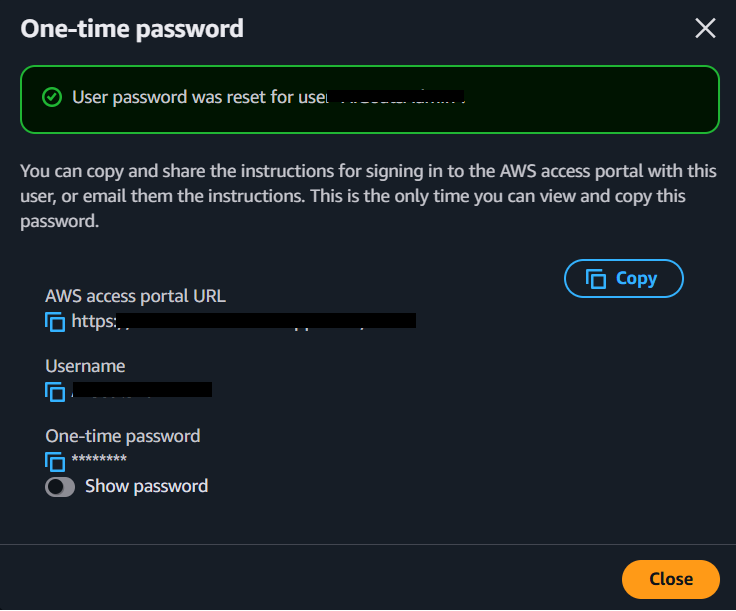
Step 47: You should be prompted with a screen that includes a URL, a username, and a one-time
password. You can use this information to log into the AWS console. Please make a note of this information,
you will need it in the future, so put it somewhere safe.
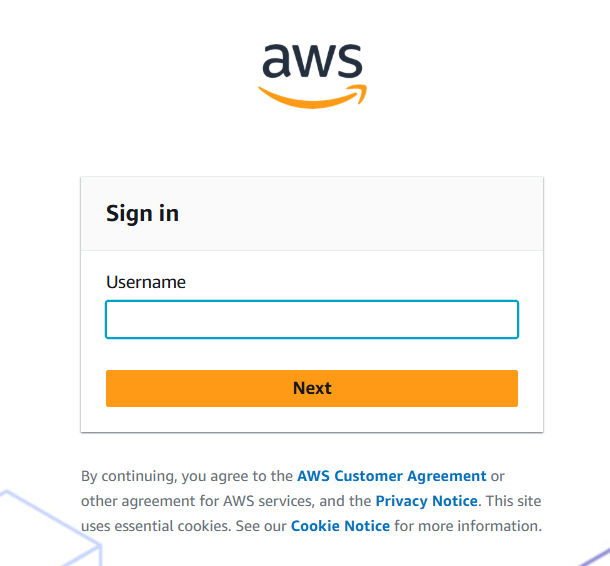
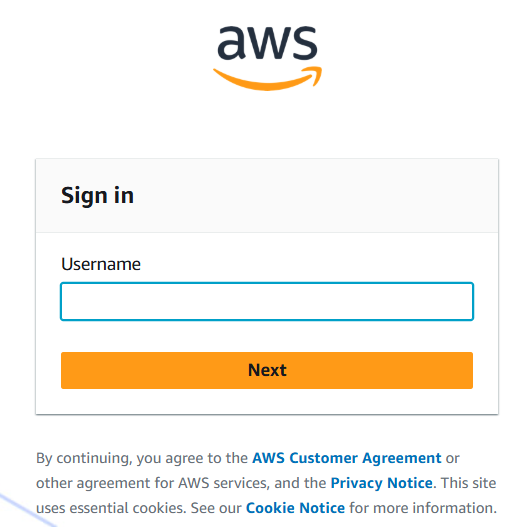
Step 48: Navigate to the URL provided. You should see a screen to enter the Username you just
created. Enter the username and click "Next."
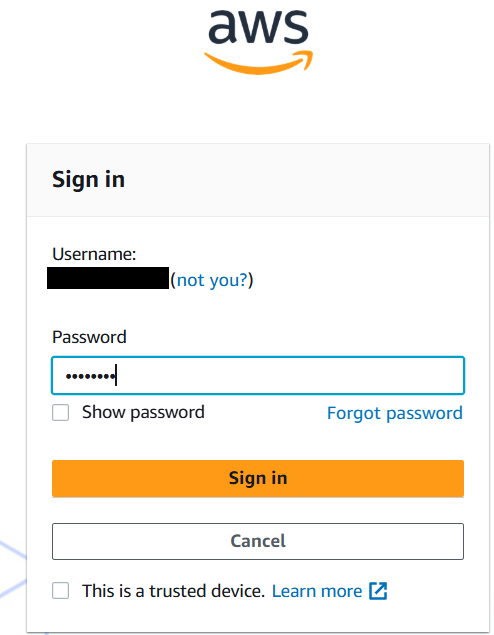
Step 49: You can now enter the temporary password AWS supplied you with. Click "Sign In."
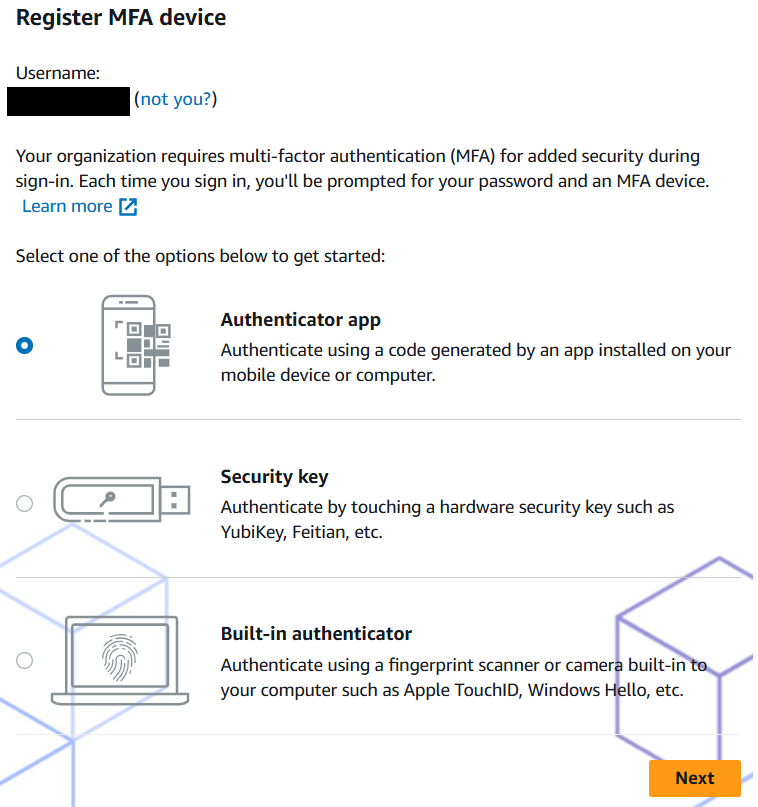
Step 50: You will be prompted to set up MFA. See the steps above on how to do this.
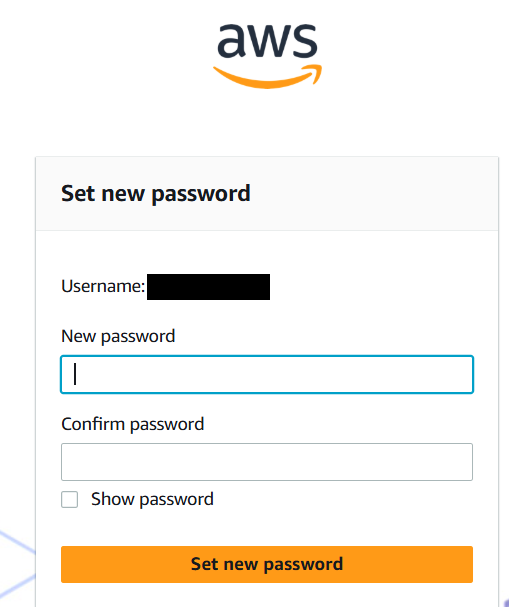
Step 51: Once your MFA is set up, you will need to change the initial password you were given. Enter
a new password and click "Set new password."
Step 52: You will then be redirected to the sign in page. You will need to re-enter your username,
then the new password, and finally your MFA authenticator.
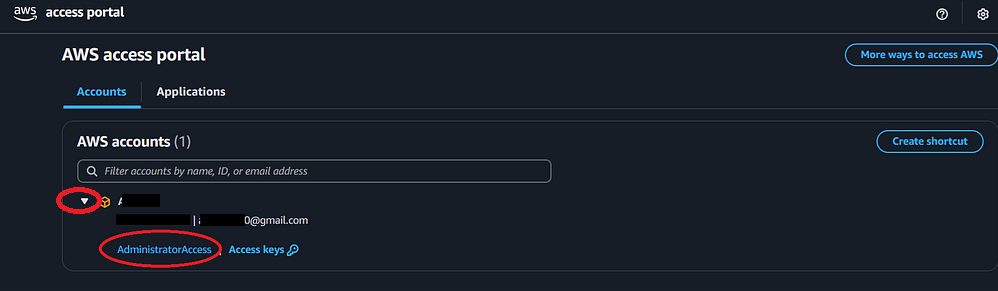
Step 53: You should now see the AWS access portal page. It should show your AWS account, and if you
click the arrow to the right of the account name, a drop down appears with two options "AdministratorAccess"
and "Access Keys." Click the "Administrator Access" option, and you will be signed into the AWS Console.
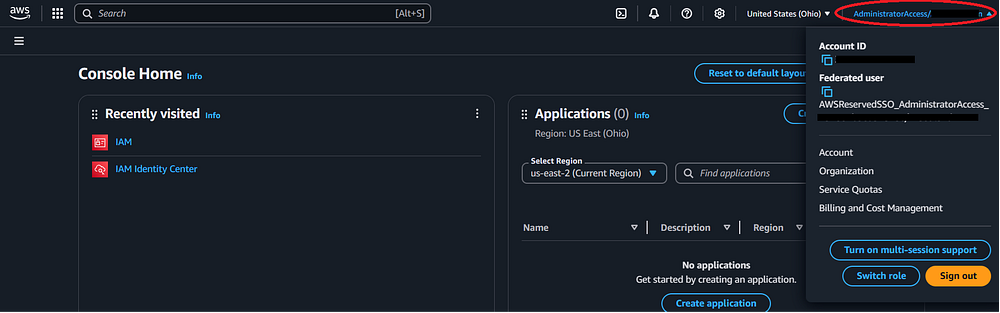
Step 54: You should now see the AWS Console Home. Note - you can click the drop down on the
AdministratorAccess section on the top right of the screen and see details such as your account ID and that
you are now a Federated User. You can bookmark the URL you used to sign in to make future sign in easier. As
per previous notes, you should use this account, not the "root" account, for day to day work in AWS.
Sub-Section - Setting up a Billing Alarm:
Step 55: Before you start creating services in AWS, you should set up a billing alarm. This is just
as important as MFA; unless you have lots of money to burn, you do not want to log into your AWS account at
the end of the month and find a huge bill waiting for you because of a surprise service charge. When you log
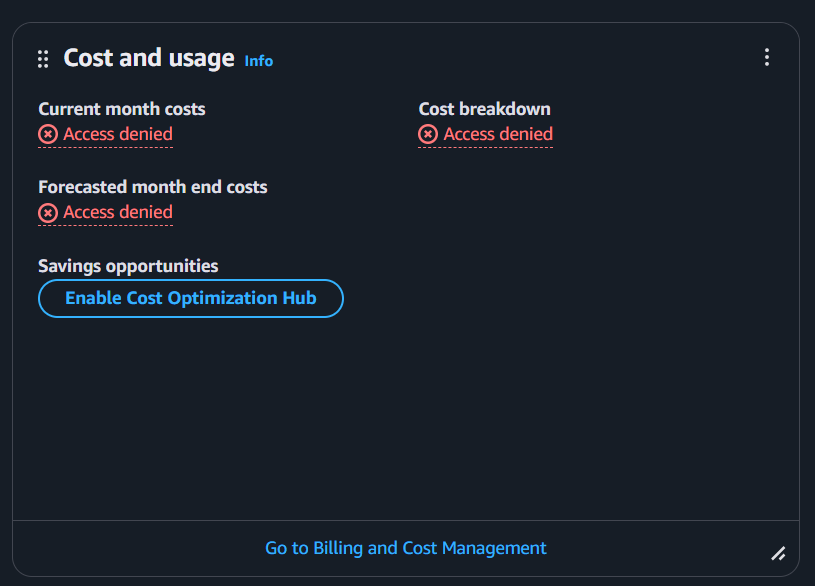
into the AWS Console using the newly created Administrator account, you might notice that the "Cost and
Usage" widget is showing "Access Denied" (see the screenshot below). This is because, by default,
Administrator permissions do not allow access to certain functions, including billing. You need to log in as
the "root" account and explicitly provide billing access to the Administrator account.
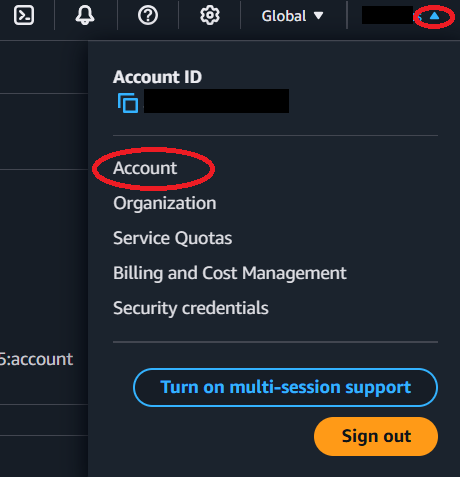
Step 56: Sign out of AWS with the Administrator account and sign back in using the "root" account;
please see the steps above on how to do this if needed. Once you are signed in as the root account, click
the drop down arrow on the top right of the screen by the Account Name and choose the "Account" option.
Step 57: This will bring you to the root account configuration screen. Scroll down until you see the
option called "IAM user and role access to Billing information" and click the "Edit" button.
Step 58: Check the "Activate IAM Access" box and click the "Update" button.
Step 59: The console should show that this has been activated.
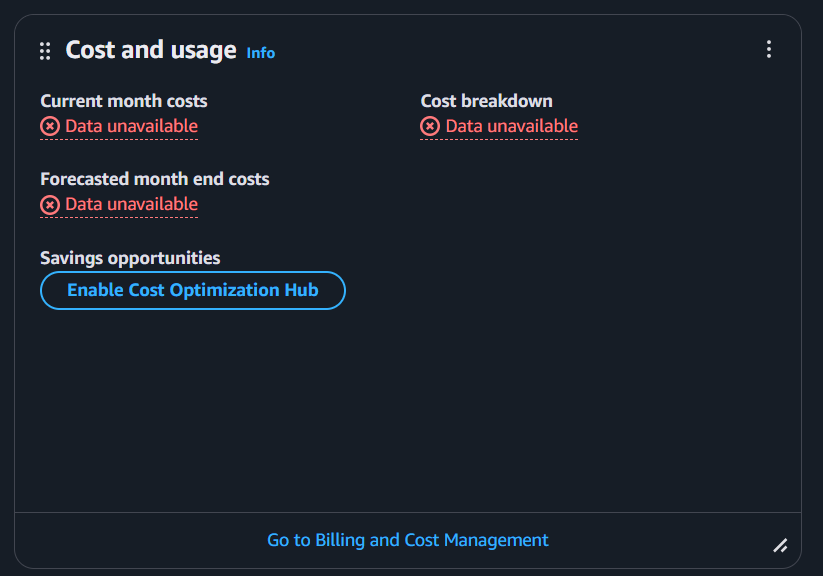
Step 60: If you sign out of the "root" account and sign back in to the Admin account, you should see
a change in the "Cost and Usage" widget. While the data may not be available (it takes time after setting up
a new account for these fields to populate), you no longer see the "Access Denied" error.
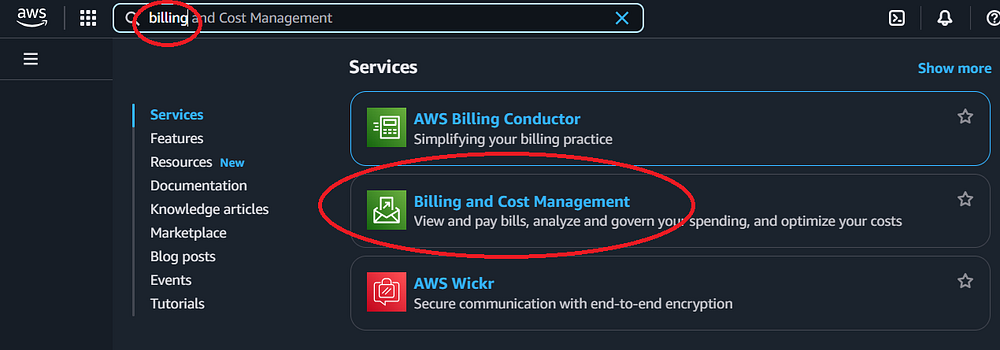
Step 61: If you type the word "billing" into the search box on the top left of the screen, you should
see an option for "Billing and Cost Management." Click that option.
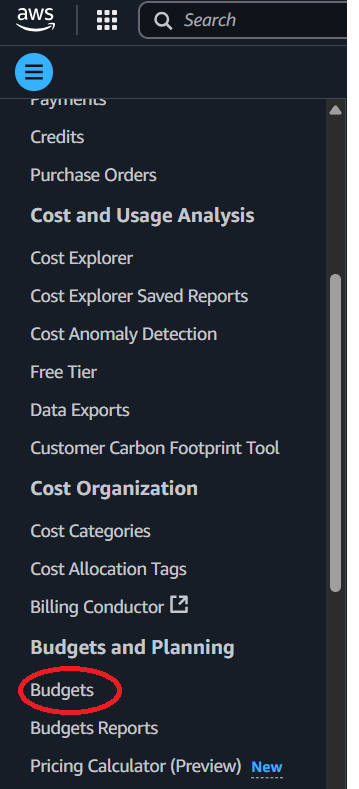
Step 62: On the right side of the screen, in the navigation section, click the option that says
"Budgets."
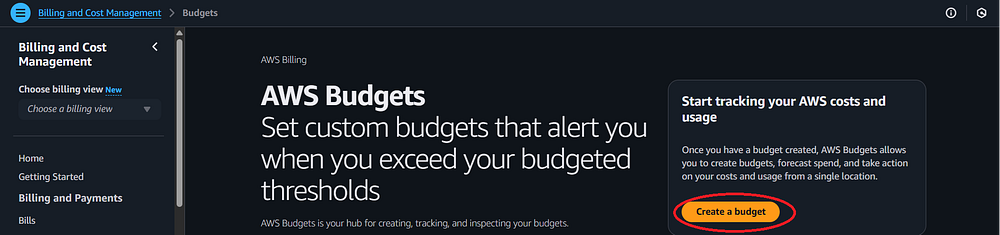
Step 63: Unless you have set up a Budget for this account before, you should see a button called
"Create a budget." Click it.
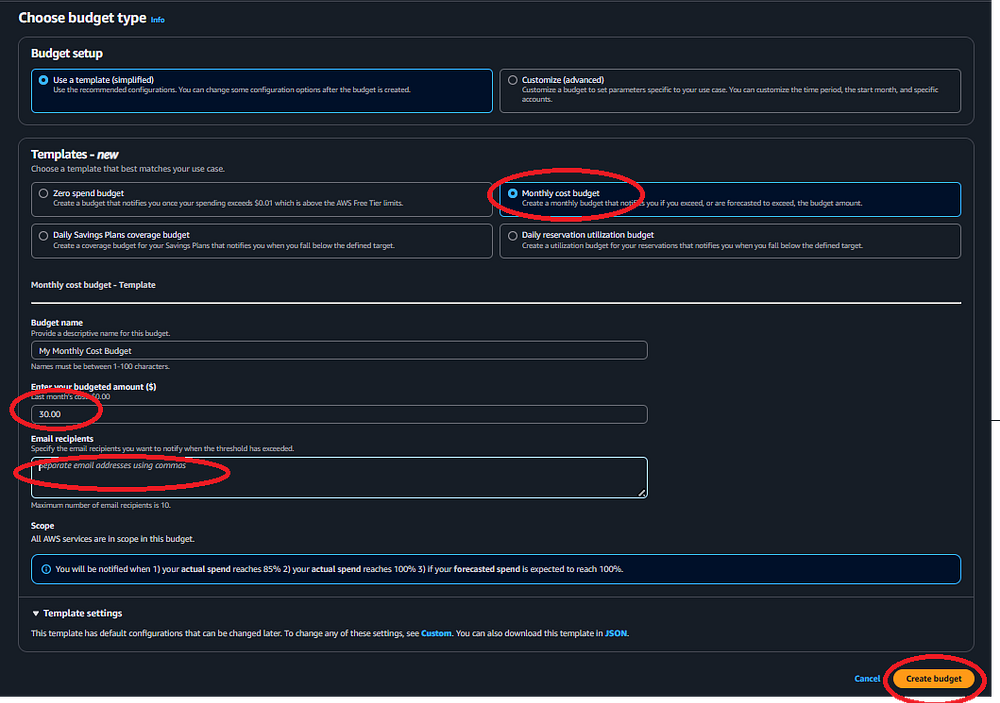
Step 64: Set up a budget. The author is using a template (vs a customized budget) and the "Monthly
cost budget" option for a $30 / month spend alarm. You should enter any email addresses you want to receive
alerts to. These may be email addresses that differ from the email address you used for your "root" or user
accounts. When done, click "Create budget."
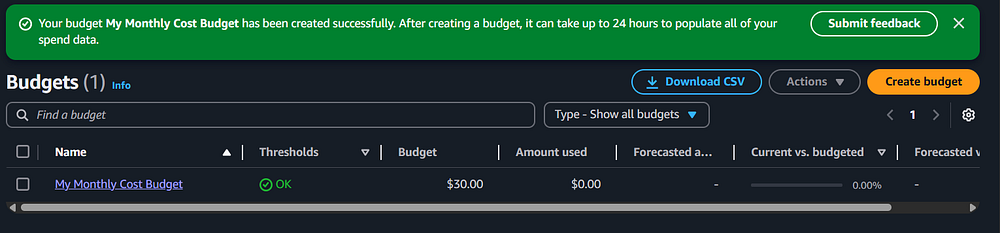
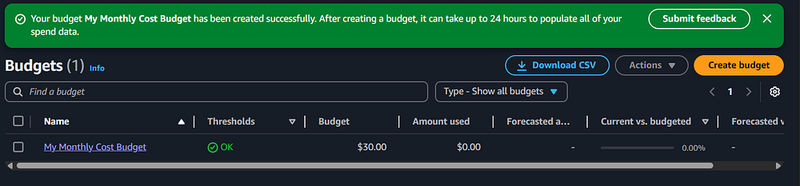
Step 65: You should see a screen confirming that your budget was created. Note that while Budgets are
designed to protect you from overspending, they are not a perfect solution. There may be a delay between
when an event occurs that triggers a cost, and when the budget alarm notifies you. As always, proceed with
caution.
Step 66: This completes the AWS Account setup process. With the AWS Account set up, you can now
follow the Step By Step guides that use AWS Services to deliver working solutions, such as creating a
static website. These guides can be found in the main Step By Step Guides page.
Note - it is reccomended that you connect Visual Studio Code with your AWS Account using the AWS Toolkit.
Please see the Step By Step — Connect Visual Studio Code to AWS
guide for more infromation.