Step By Step — Build a Static Website on AWS using S3 and CloudFront
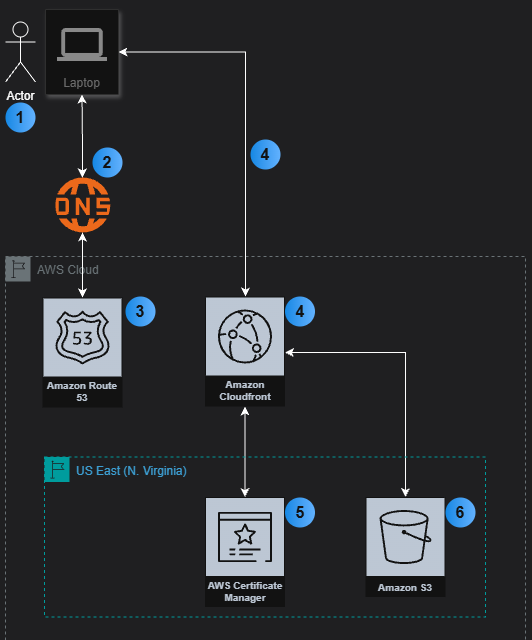
This step by step guide will cover how to host a static HTML "Hello World" website on AWS leveraging S3. It
will use S3 to store the HTML file, CloudFront to enable HTTPS access, and Route 53 for the domain name.
This guide is part of a series that show how to host a website using object storage such as S3, serverless
tools such as Lambda, traditional compute solutions such as EC2, and container-based solutions such as EKS.
The goal is to show that there are many architectural solutions which can be used to meet a business need,
and they all have tradeoffs. This guide is designed for a first time user and may not be of interest to
experienced users. This guide does not leverage Infrastructure as Code (IaC) tools. There will be a separate
guide for that topic. Note that this guide is using AWS Services that cost money (domain names, WAF, etc.).
While the author makes every effort to keep costs low, do not proceed unless you are ok with incurring some
costs. Note the author has hidden certain fields (email addesses, account names, codes and credentials,
etc.) for security purposes using colored boxes.
Link to YouTube video: coming soon.
Prerequisits:
Steps:
Sub-Section - Create an Application:
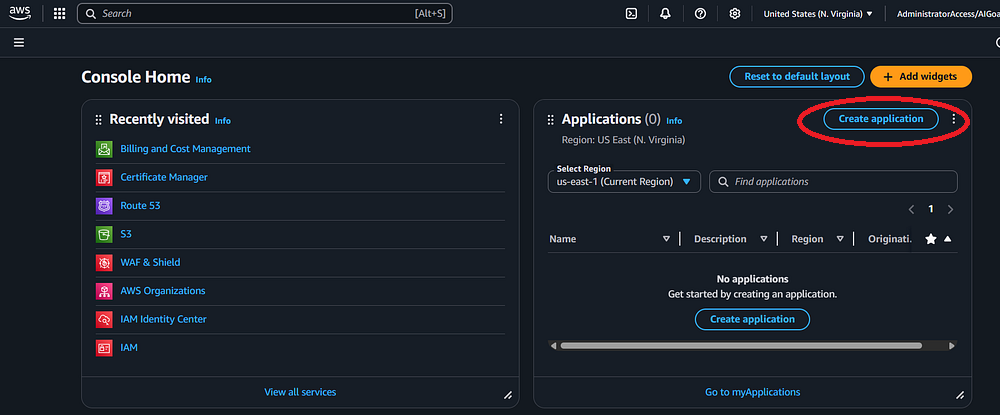
Step 1: The first thing you will do is to create an "Application" (which will include a "Tag" Key /
Value pair) that you can use to tag the AWS resources you will create. This allows you to group the AWS
resources under an application, making resource tracking easier. Log into the AWS Console. See the Step By
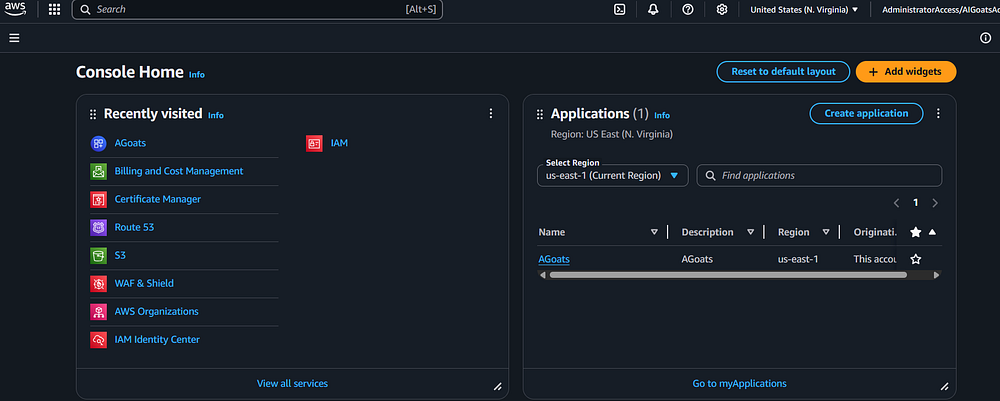
Step - AWS Account guide if needed. In the AWS Console, you should see the "Applications" screen on the
right with no applications showing (unless you created one previously). Click the "Create application"
button.

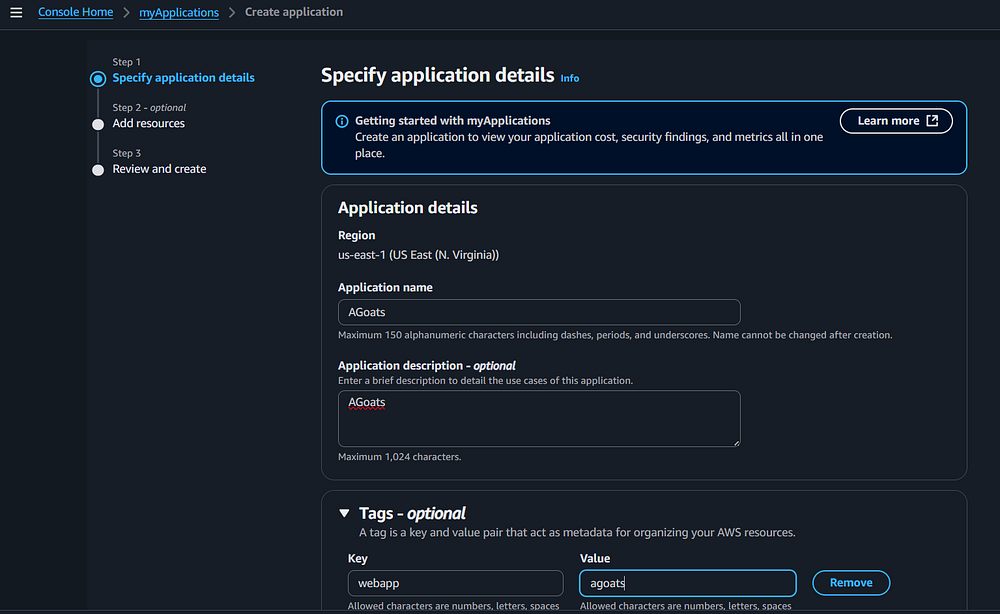
Step 2: Enter an application name, the author used "AGoats." You can also enter a description if
you like. Note - you cannot change the application name once it is created! You do not need to create
anything in the "Tags" section at this time, when you create the application, a Tag Key/Value pair will be
created for the application. Click the "Next" button.

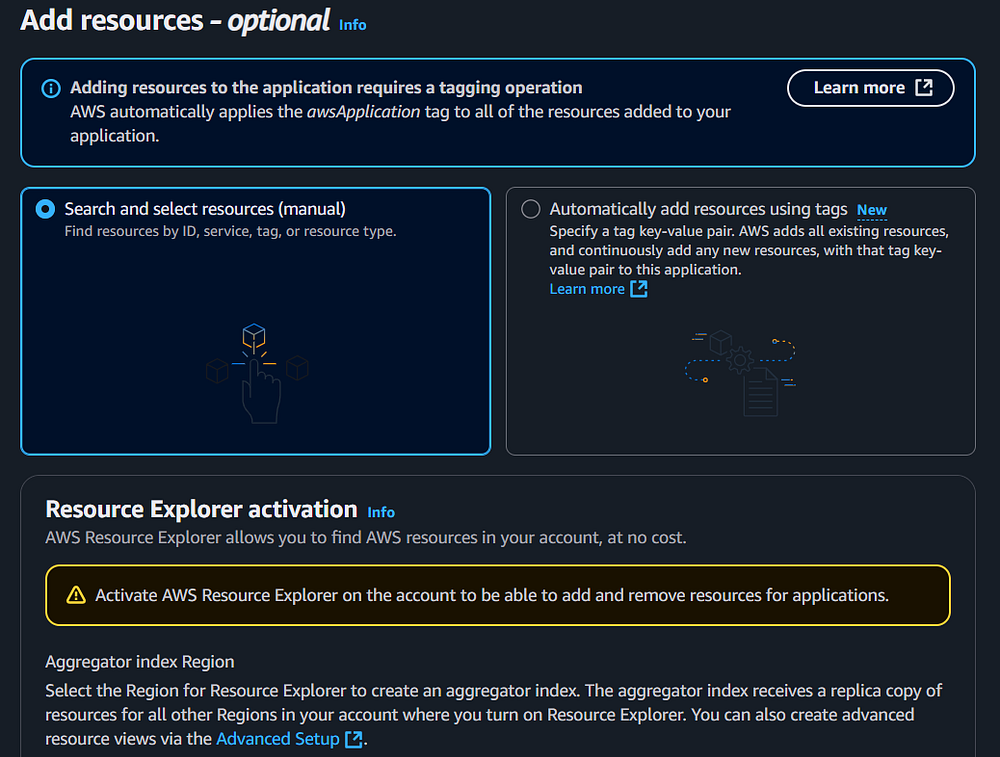
Step 3: Ensure the "Search and select resources…" option is checked. Click the "Next" button.

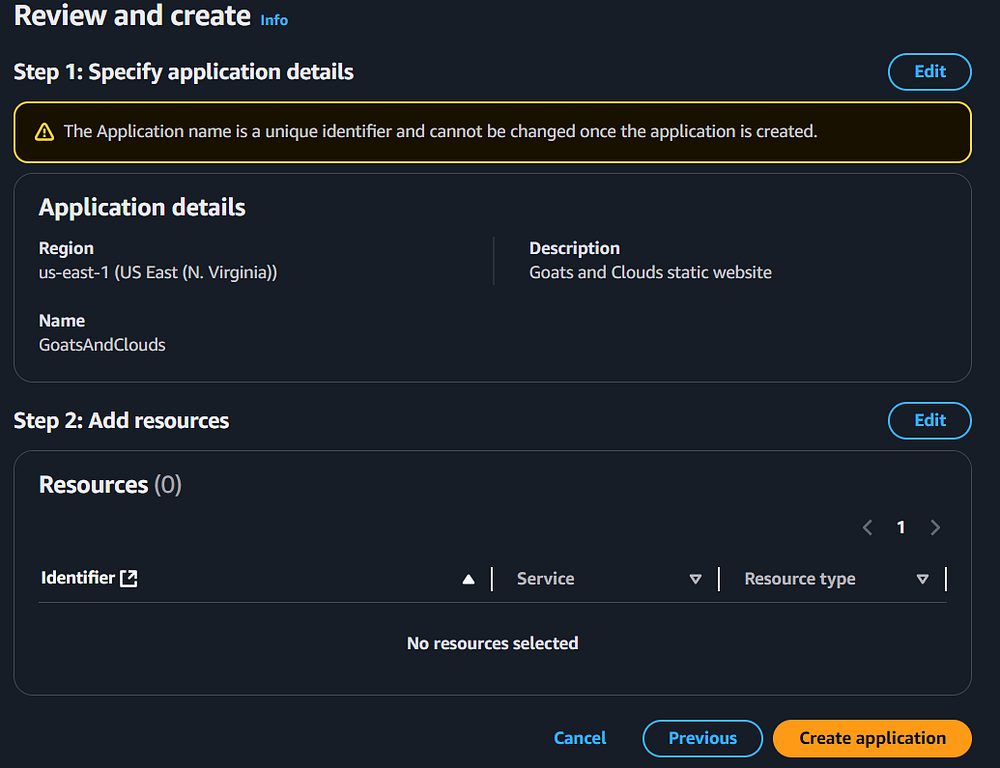
Step 4: Review the information and click the "Create application" button.

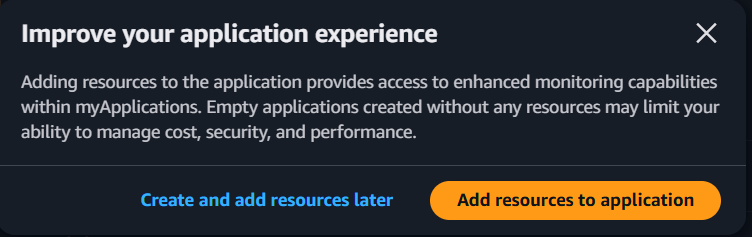
Step 5: You may get a pop up message. If so, click the "Create and add resources later" option.

Step 6: A box will appear showing the progress bar to create the application.

Step 7: You should see a message bar notifying you that the application was created successfully.

Step 8: If you go back to the AWS Console homepage, you should see your newly created application
appear in the "Applications" box. Click the application (in the author's case, it is "AGoats").

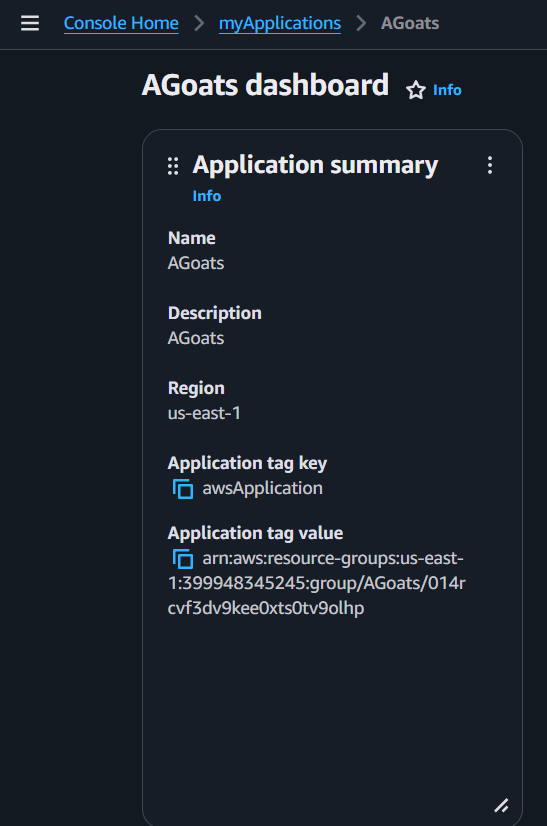
Step 9: In this screen, on the left hand side, you can see the "Application tag key" and "Application
tag value." You will need to use this key and value pair when creating new AWS resources in future steps to
associate those resources with this Application. You can use the "blue boxes" to the left of the fields to
copy the key and value pairs.

Step 10: Also on this screen, there is a button called "Manage resources" towards the top. Click it.

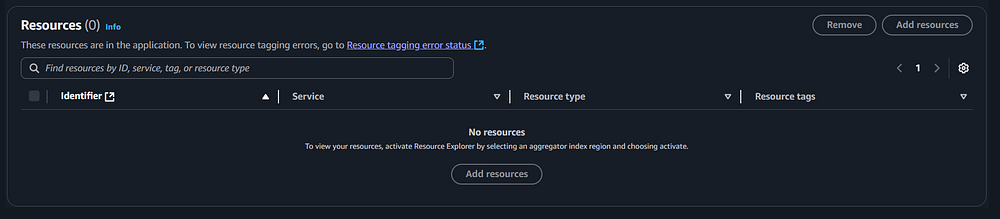
Step 11: In this view, you can scroll down to the "Resources" section and see all the resources you
have added this application key / value pair to. In future steps, as you create resources, you will add the
key / value pairs and that will cause those resources to show up in the list.

Sub-Section - Register a Domain Name with Route 53:
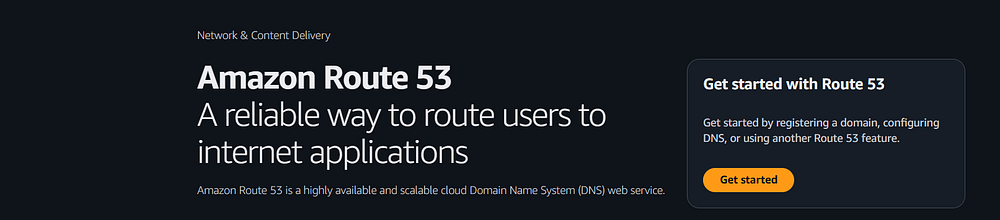
Step 12: In the AWS Console, you need to navigate to Route 53 to register a domain name for the
website. Type in "Route 53" into the search box and select "Route 53" when that option comes up.

Step 13: If this is the first time you are using Route 53, click the "Get started" button.

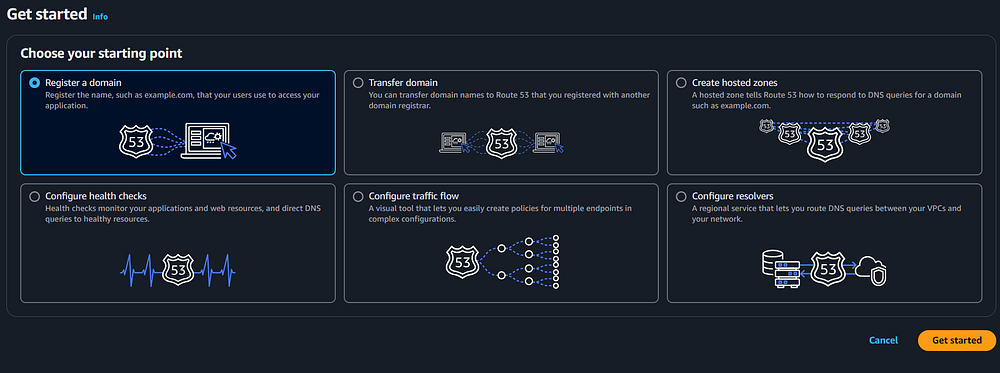
Step 14: Ensure the "Register a Domain" option is checked and click the "Get Started" button.

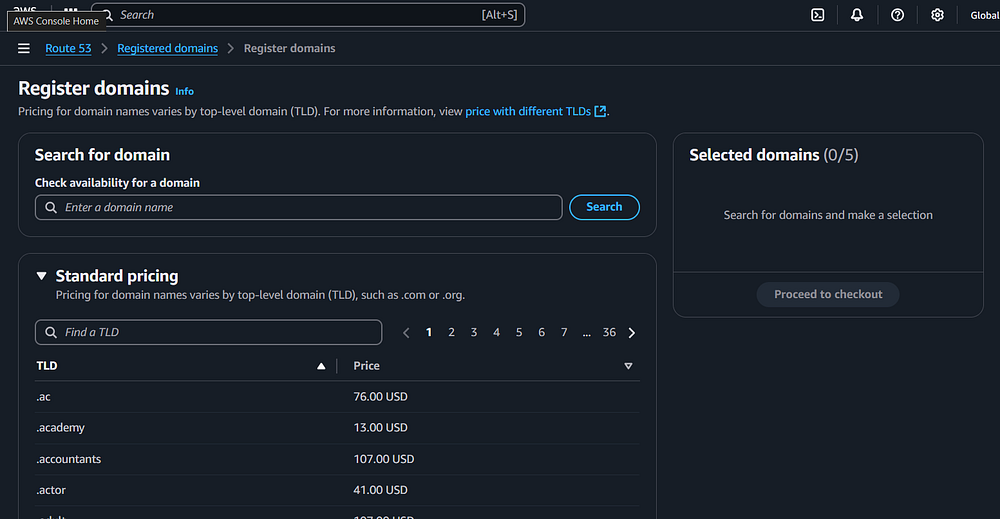
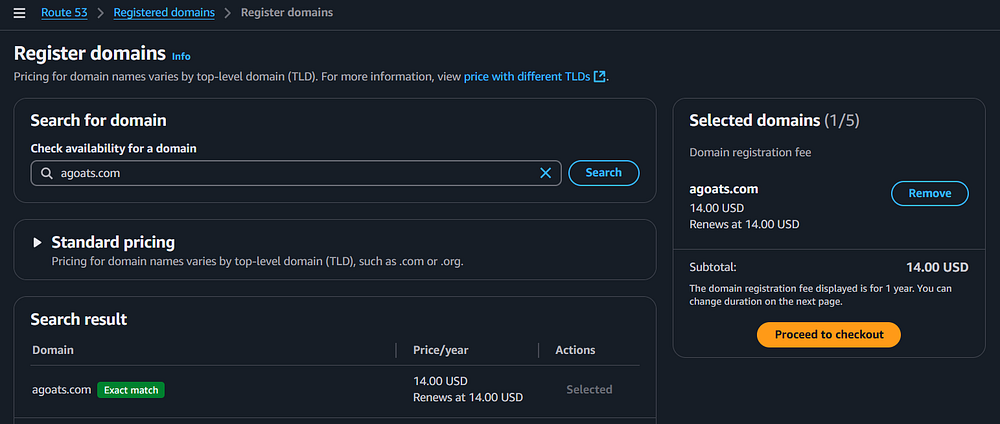
Step 15: You will need to find a domain name that has not been taken and choose a root domain (the
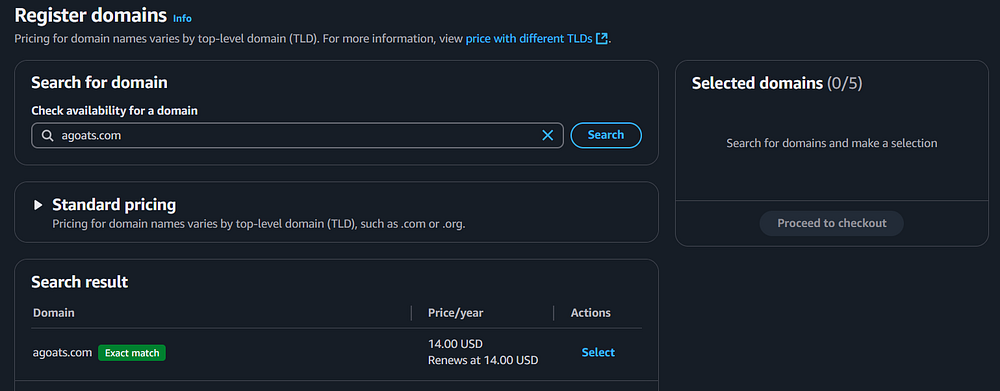
author used ".com"). You should type in a domain name and use the "Search" button until you find one that is
not taken. Note that AWS will recommend domain names that are available to help you find one.

Step 16: Once you find one that you like, click the "Select" button.

Step 17: When you click the "Select" button, you should see the domain you selected and the cost show
up on the right side window and the "Proceed to checkout" option is available. Click the "Proceed to
checkout" button.

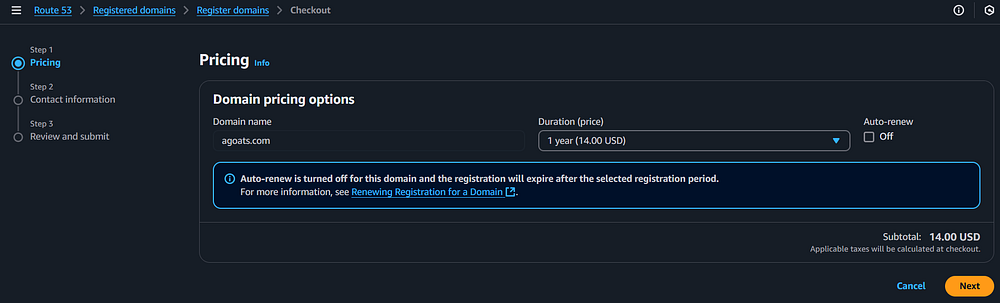
Step 18: You can choose to leave the auto-renew on. If this is a domain you want to keep, then keep
it on. The author chose to uncheck the box, as this is a demo site he plans to delete. Click the "Next"
button.

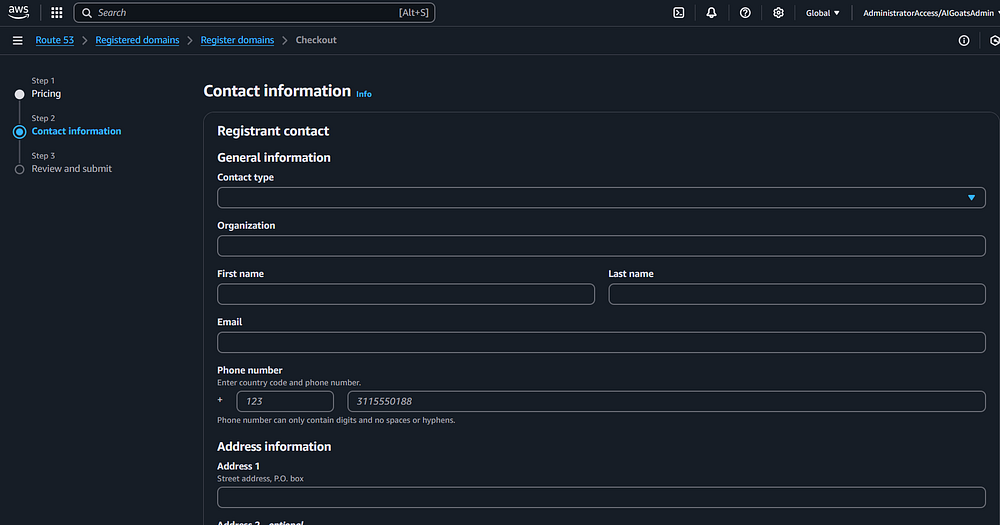
Step 19: You will need to fill in your information. Note that for the first field (contact type) you
have several options. The author chose "person."

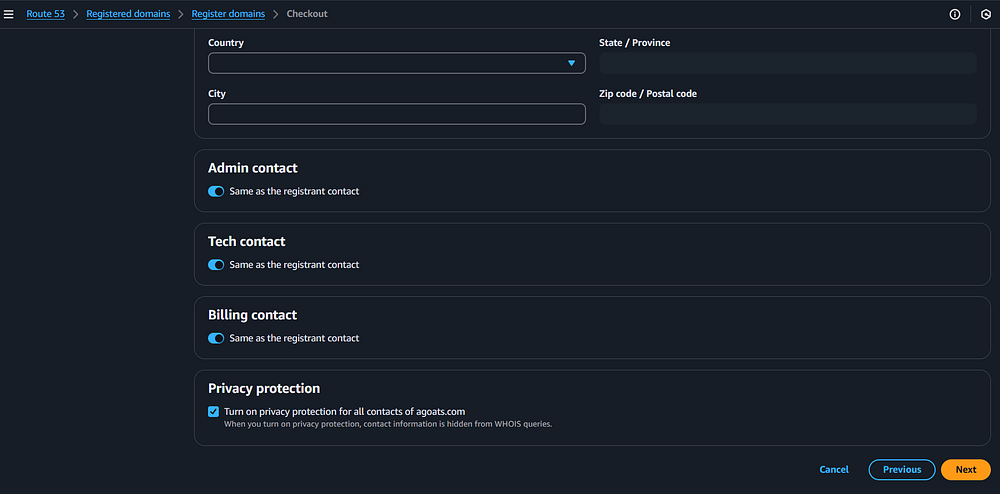
Step 20: Note that further down you can select different contact
information for the admin, tech, and billing contact, if you want to add different information (the author
left all contacts the same, which is the default). You can also disable privacy protection (the author left
it enabled). Click the "Next" button.

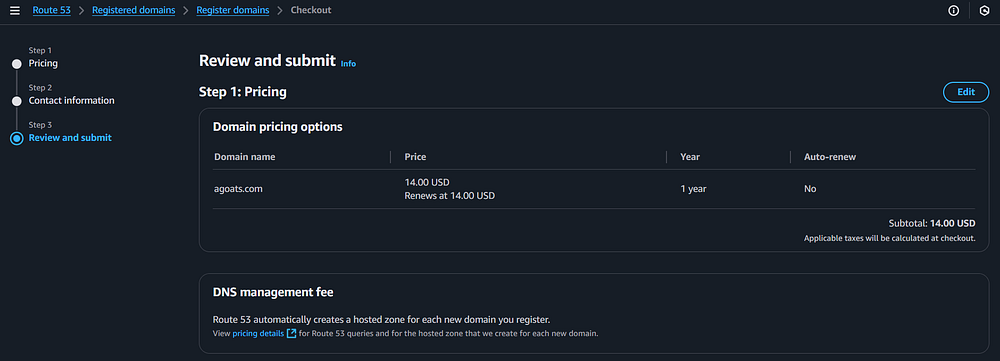
Step 21: You will need to review all the information.

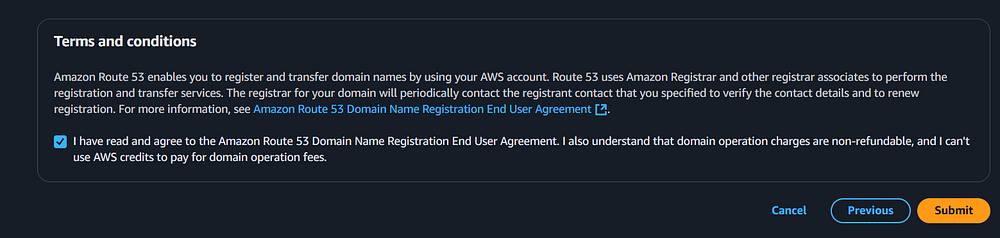
Step 22: Scroll down, check the "I have read…" box and then click the "Submit" button.

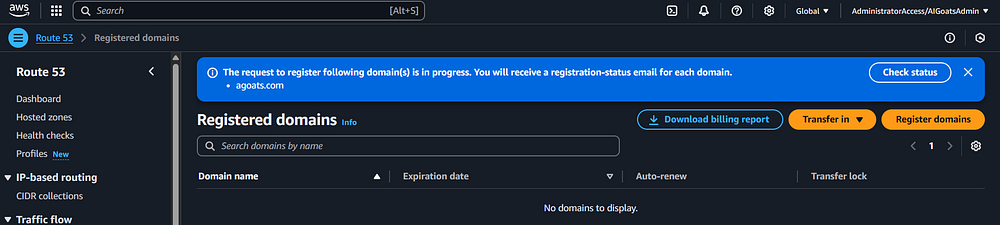
Step 23: You should be taken back to the Route 53 page. You should see a status message indicating
that the registration process is in progress and you will be notified when it is done. Note this process can
take several minutes / hours depending on many factors. You can use the "Check status" button to check on
the status.

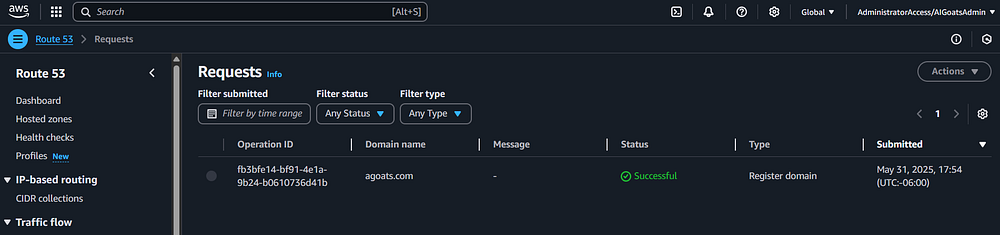
Step 24: Once the registration process is done, you should see the dashboard update with the
"Successful" status. Note - you should also receive an email to the email address you used to indicating the
domain was successfully registered.
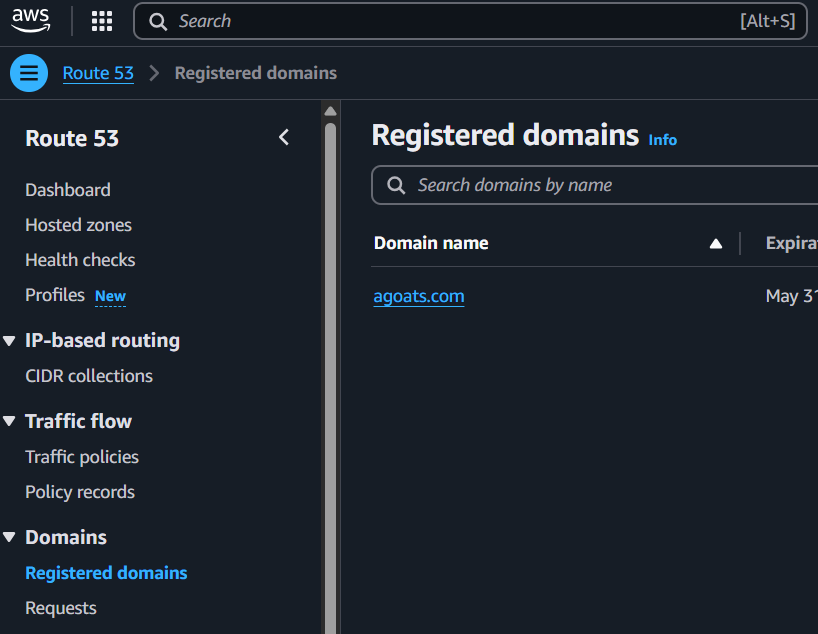
Step 25: Once the domain is registered, you need to ensure it is validated. You need to do this step
before the certificate will be validated. On the left hand menu, click the "registered domains" option and
then click the domain you registered (the author registered agoats.com).
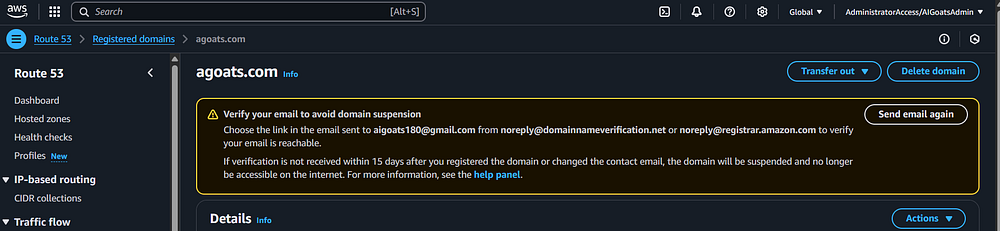
Step 26: If you see a message at the top indicating you need to verify your email, check your email
to see if you have an email from AWS to respond to. You can also use the "Send email again" button to get a
new email which you need to respond to. Note: you may need to check your Spam filter.

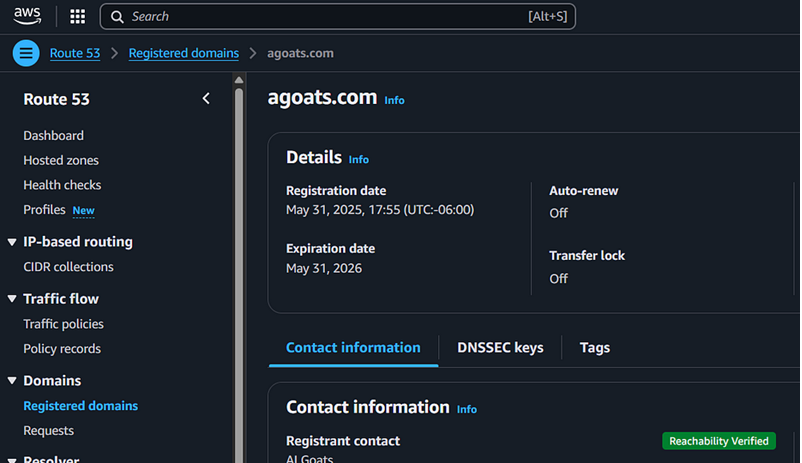
Step 27: If you completed the email step and refresh the AWS console, you should see the message
above disappear, and you should see a "Reachability Verified" message in the "Contact Information" section.
You should also receive a confirmation email from AWS.

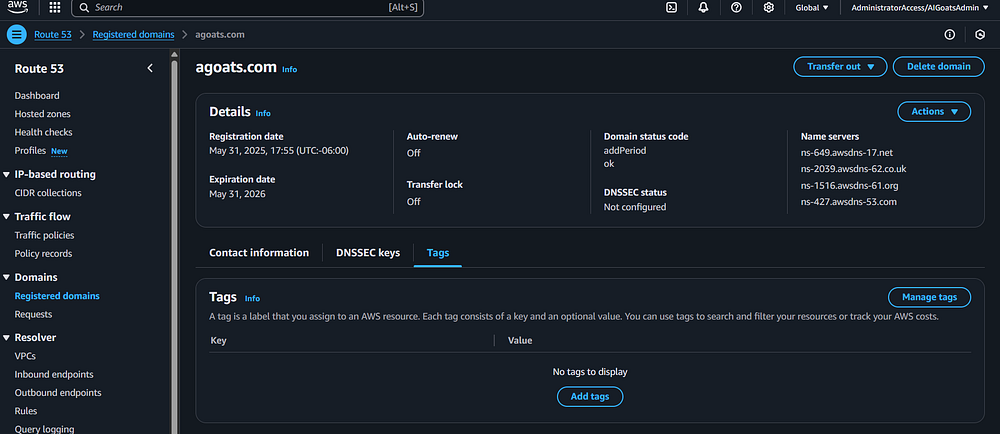
Step 28: While you are here, you should add the application tags to this domain. Click the "Tags"
tab, and the click the "Add tags" button

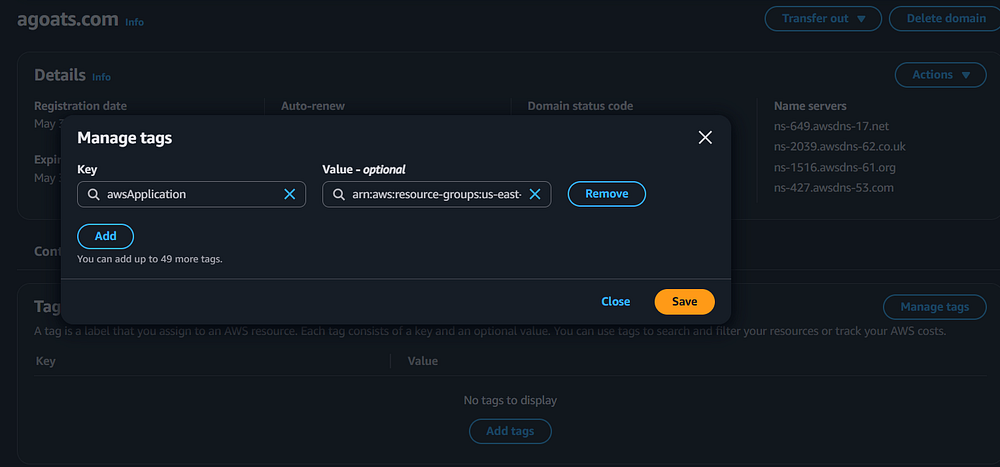
Step 29: You will need to copy the key/value pairs from the application above. One way to make this
easier is to have two tabs open on your browser. One tab for the application which allows you to copy the
key and value data, and the other tab for the window where you need to paste the key and value data. In some
cases, if you click on the "Key" or "Value" boxes, you may be presented with a list of options. Ignore,
those options and paste your application key and value information. Click "Save" when done.

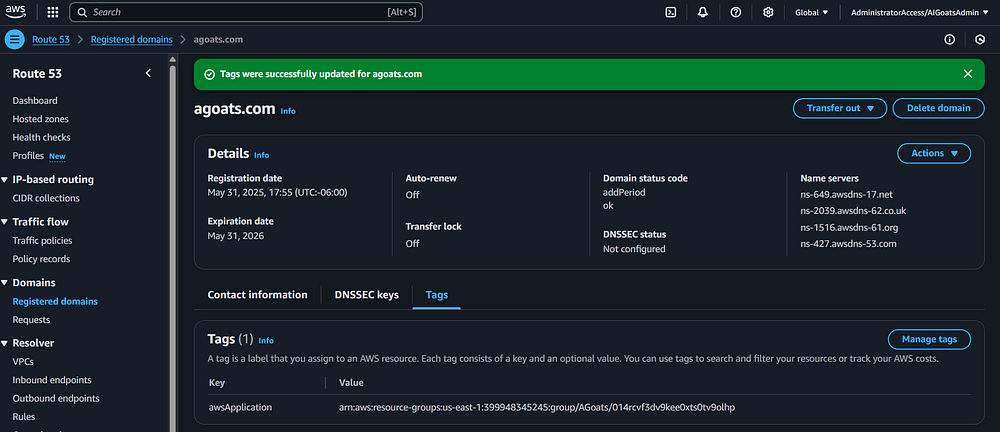
Step 30: You should see a message indicating the tags were updated, and you should see the key and
value pairs in the list.

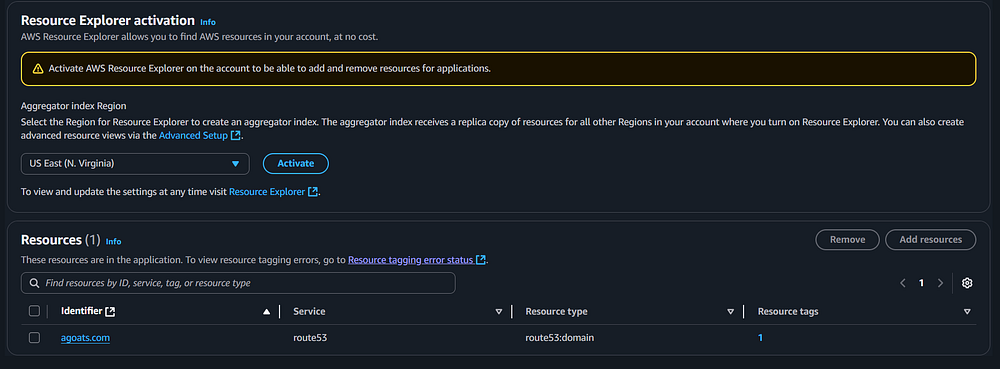
Step 31: You can validate this worked by navigating back to the application, clicking the "Manage
resources" option (see steps above on how to do this) and checking to see if the resource shows up in the
"Resources" list.

Sub-Section - Get a Public Certificate using Certificate Manager:
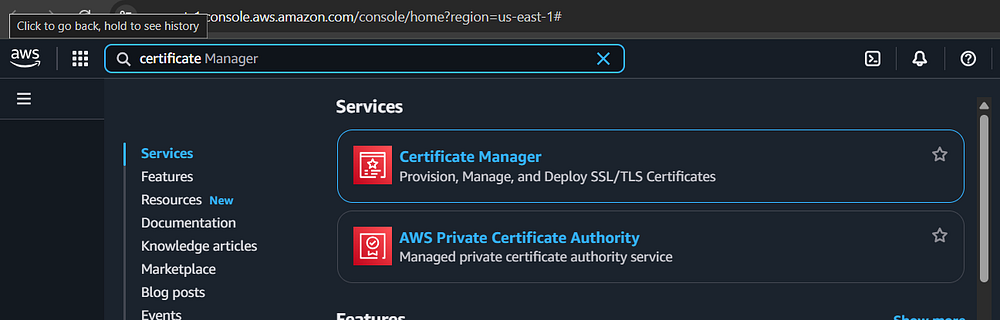
Step 32: Now that you have registered a domain, you need to get a public certificate. This is
required because we are using CloudFront to enable HTTPS traffic. In the main management console, type
the word "Certificate" into the search box. You should see an option appear for "Certificate Manager."
Click that option. Note that these steps assume you purchased the domain name in Route 53 and did not
"import" it from another registrar. If you imported it, you will need to create a Hosted Zone and modify the
domain servers. Doing this work is beyond the scope of this guide.

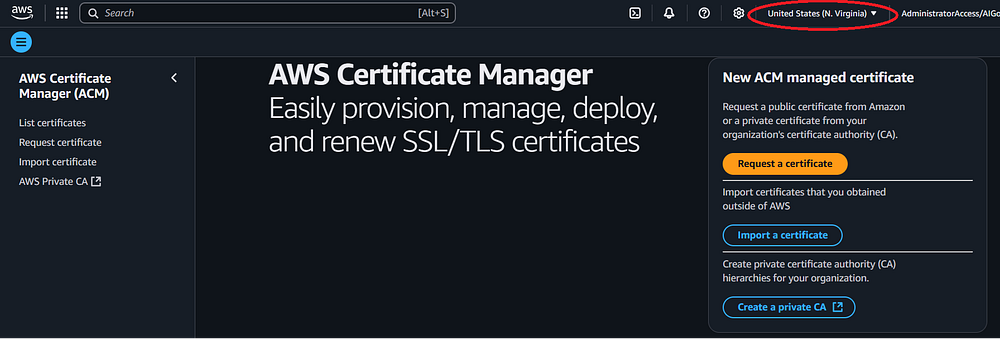
Step 33: On the Certificate Management homepage, you should see an option to "Request a
Certificate" on the right hand side. Click the "Request a Certificate" button. Note: make sure you are
in the US East (N. Virginia) Region, this is required since we are using the certificate for CloudFront
HTTPS.

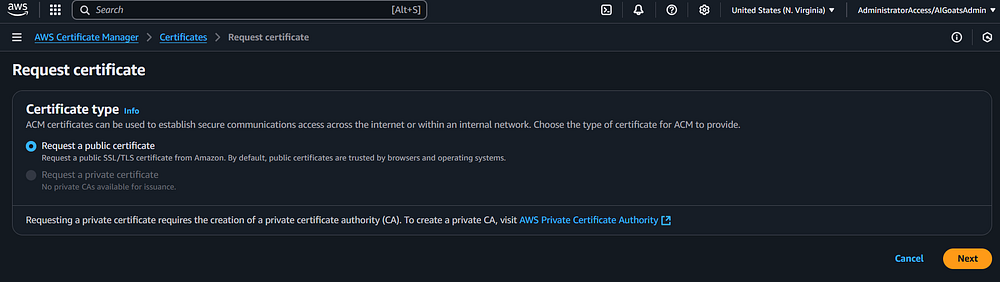
Step 34: Ensure the "Request a public certificate" option is checked. Click the "Next" button.

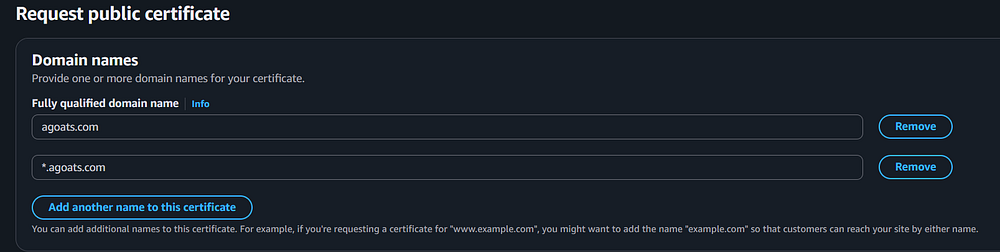
Step 35: Enter the fully qualified domain name you registered in the previous step (the author
registered agoats.com). You should also click the "Add another name to this certificate" button and add
an entry in the format of *.yourdomainname so that you have a wildcard certificate for all the
subdomains. For the author, that means adding *.agoats.com.

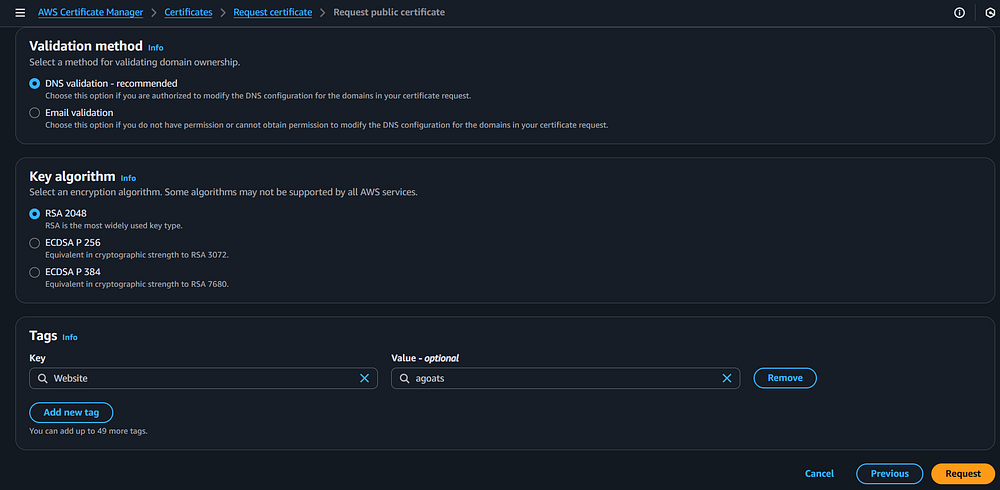
Step 36: Fill out the rest of the form. Validation method should be "DNS Validation." Key
algorithm should be "RSA 2048." For Tags, follow the steps above to add the key / value pair from the
application you created. Click the "Request" button.

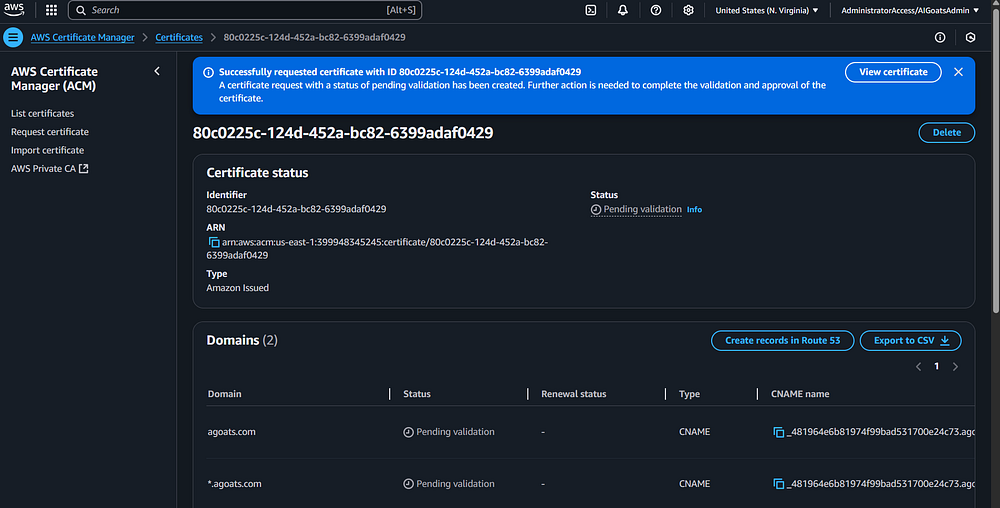
Step 37: You should be taken to a screen which has a message indicating your certificate is in
"pending validation." Note that the table at the bottom should contain both the domains you requested.
In the case of the author, this includes agoats.com and *.agoats.com. Click the "Create records in Route
53" button.

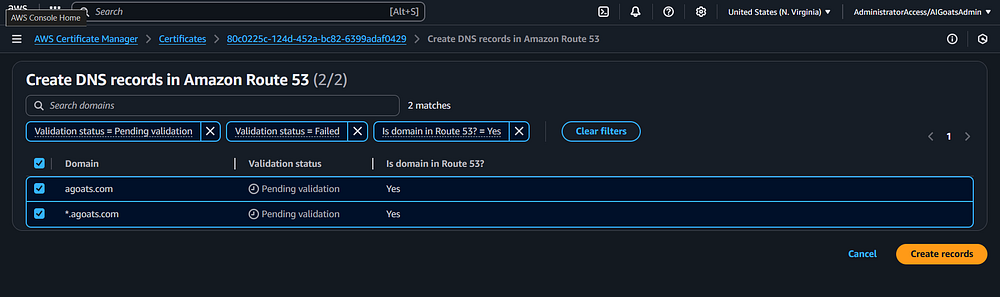
Step 38: You should be taken to a screen where both records are listed and checked. If not,
ensure they are both checked, then click the "Create records" button.

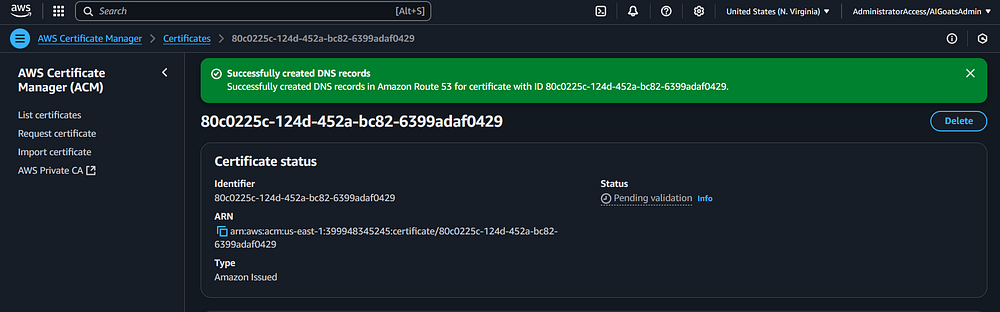
Step 39: You should see a message indicating that the DNS records were created.

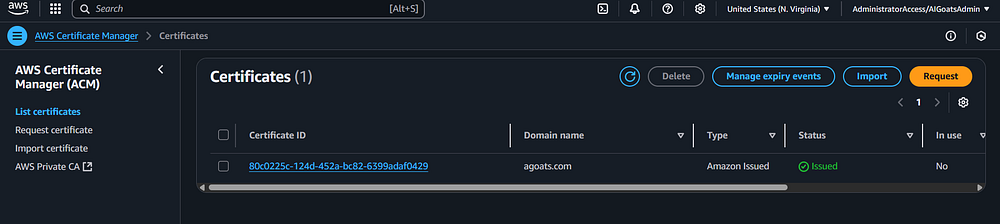
Step 40: It may take some time, but if you click the "List certificates" option, the certificates
should show as "Issued."

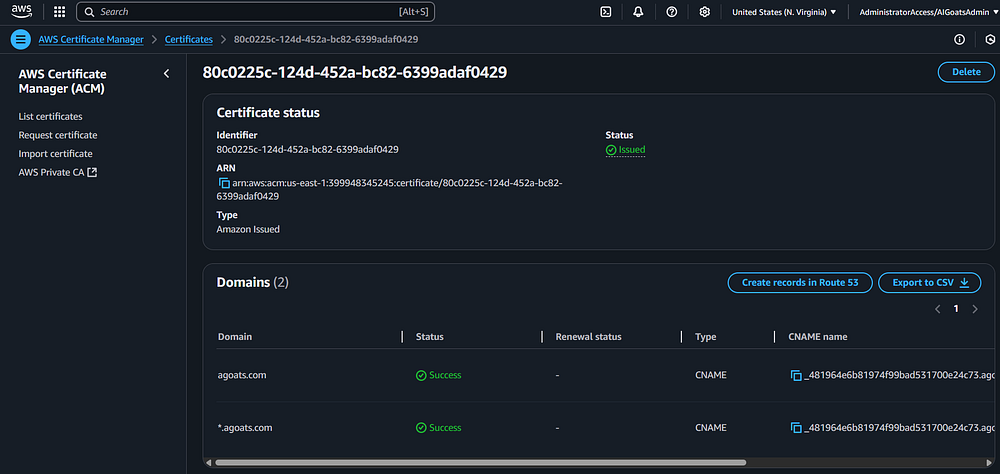
Step 41: You can click on the Certificate ID link to see both certificates with a "Success"
status.

Sub-Section - Create Two S3 Buckets:
Step 42: Now that the certificate is valid, you will need to create two separate S3 buckets. One
bucket will host the index.html file which will display via CloudFront for traffic coming to the subdomain
(in the author's case, www.agoats.com). The other bucket will redirect traffic coming from CloudFront via
the root domain (in the author's case, agoats.com) to the subdomain bucket. Note: Make sure that both
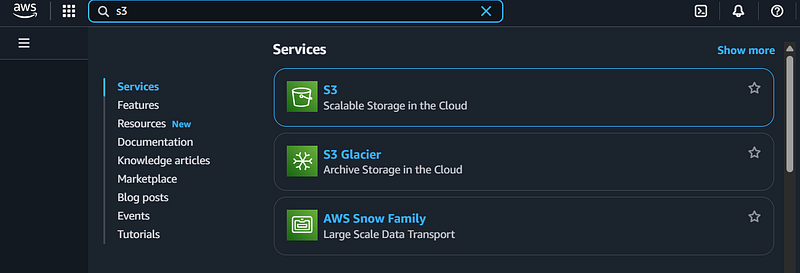
buckets are in the same Region; the author used (United States N. Virginia). In the AWS Search Bar, type in
S3 and click the S3 link.

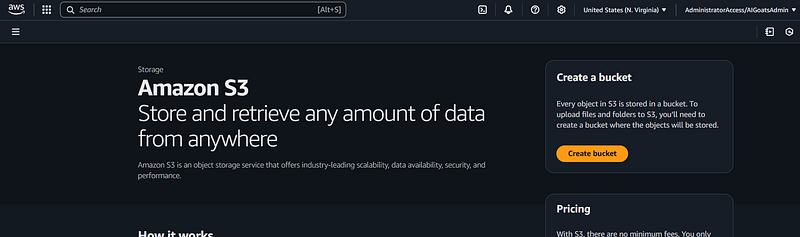
Step 43: When the S3 screen shows up, click the "Create Bucket" button.

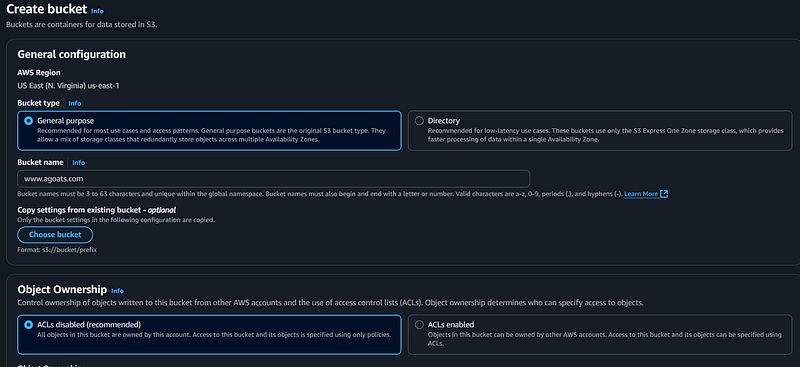
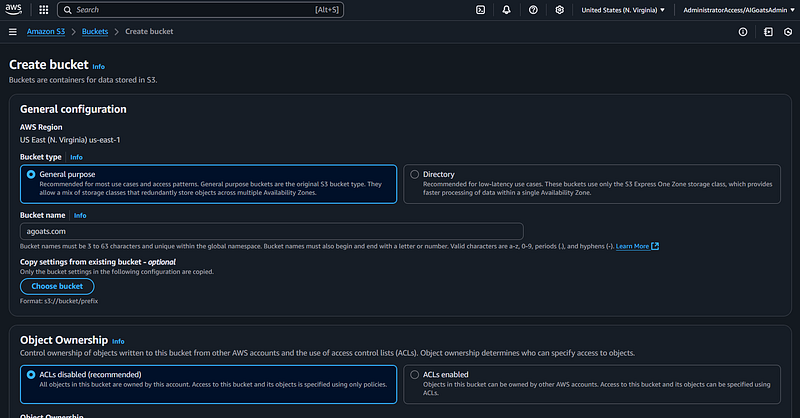
Step 44: Check to ensure you are making the bucket in the correct Region the author used "US East
N. Virginia." Leave the default selection of a "General Purpose" bucket. Enter the name of the bucket as
your subdomain; in the author's case, it is www.agoats.com. The author left all the other settings as
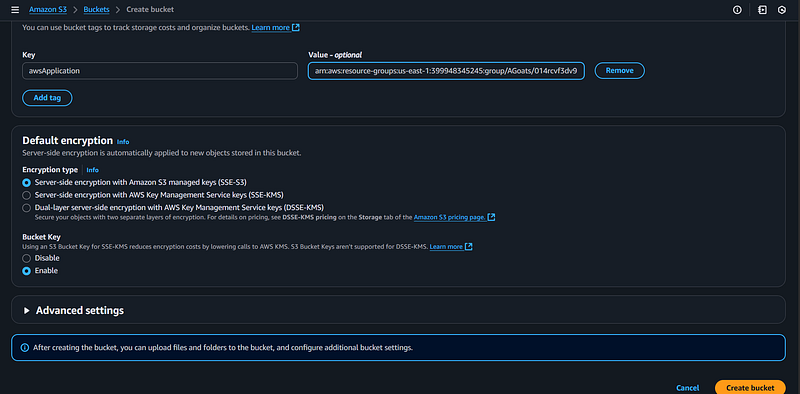
default. You should also add a tag to your bucket to track it based on the steps above using the key / value
paid of the application you created. Click the "Create bucket" button.

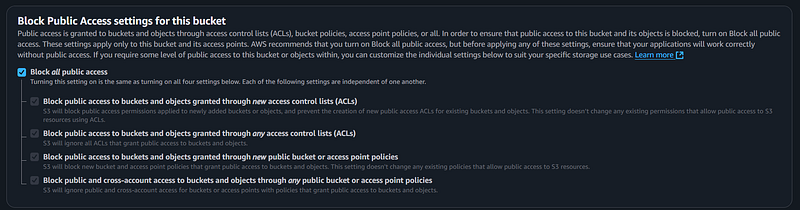
Step 45: Note: by default, S3 blocks all public access to the bucket (see screenshot below).

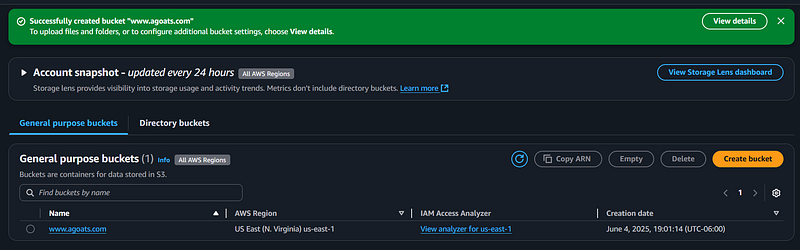
Step 46: You should see a message indicating that your bucket has been created. You should also see
the bucket show up in the list.

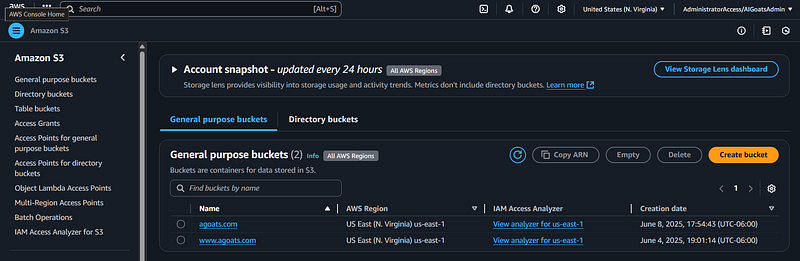
Step 47: Now that you have an S3 bucket for your subdomain, you need one for your root domain. If
you are already on the S3 bucket screen, you should be able to click the "Create bucket" option to start the
process. If not, you can go back to the main AWS Console screen and use the "Search" box, type in S3, and
select S3 (see the steps above.)

Step 48: You will use the same configuration settings as with the previous bucket. Make sure you are
in the same region as the previous bucket; the author used United Stated (N. Virginia). Note that the bucket
name is for the root domain, which should be yourdomainname. In the author's case, it is "agoats.com"
note there is no "www" prefix as this is the root domain.

Step 49: You should also add a tag to your bucket to track it based on the steps above using the key
/ value paid of the application you created. Click the "Create bucket" button when you are done.

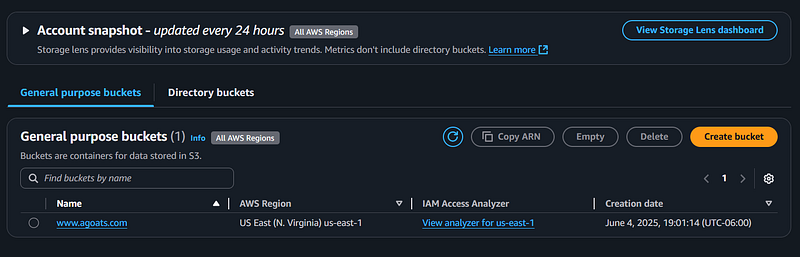
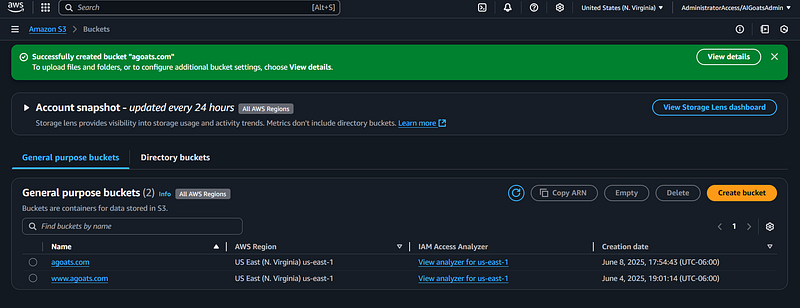
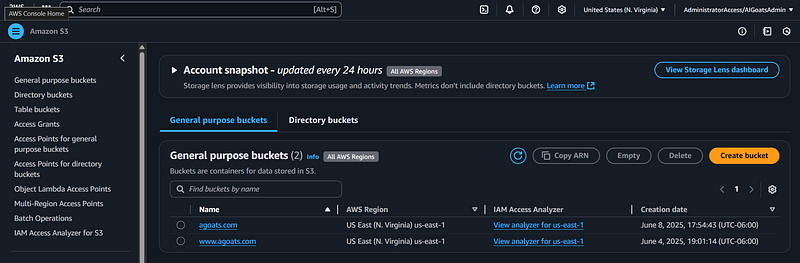
Step 50: You should see a green banner indicating the bucket was created successfully. You should now
see two buckets in your S3 console.

Sub-Section - Configure the Subdomain S3 Bucket:
Step 51: You now need to upload an index.html "Hello World" file to the subdomain bucket (the one
that the author has a www.agoats.com). This will render the index.html "Hello world" file as a web page via
CloudFront once you connect the domain name to CloudFront and CloudFront to the S3 subdomain bucket. Click
on the subdomain bucket.

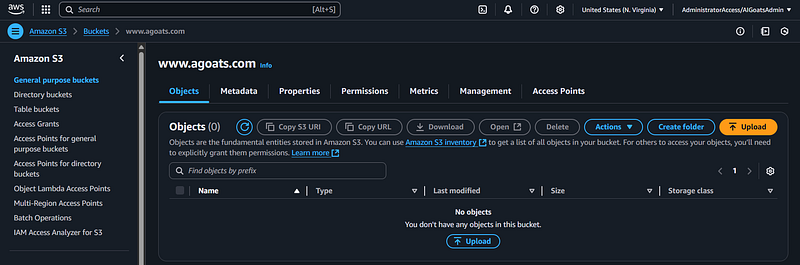
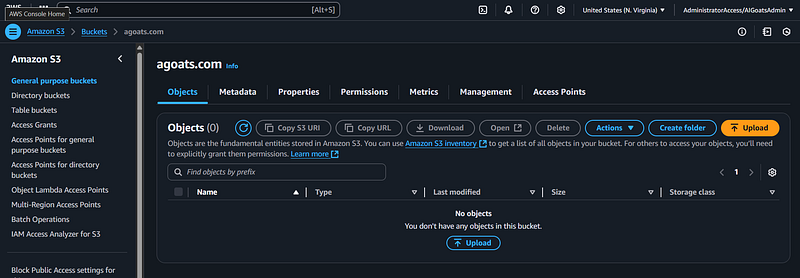
Step 52: You should see a screen that indicates there are no objects in the bucket currently. Click
the "Upload" button. Note: in later Step By Step guides, the author will show you how to set up workflows to
automatically deploy code from your repository to AWS services such as S3. This guide shows how to do it
manually.

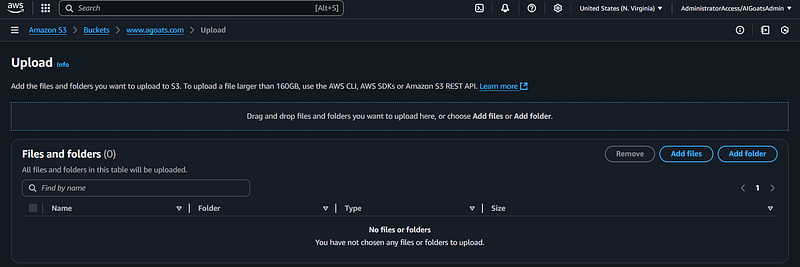
Step 53: You can either drag and drop your index.html file to the screen, or use the "Add files"
button to navigate to your local repository folder and upload it. The author left all setting as default.
Click the "Upload" button. Note you should be using the index.html file you created in the previous guide.
Please see this guide: Step By Step — Connect Visual Studio Code to
GitHub if you need help. You should also upload the image file (jpg) that the index.html file
references.

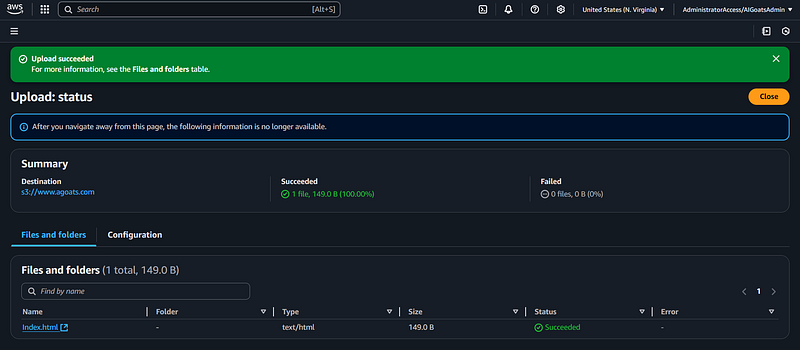
Step 54: You should see a green banner indicating the upload was successful and you should see the
file in the bucket.

Sub-Section - Configure the Root Domain S3 Bucket:
Step 55: You now need to configure the root domain bucket (the one the author has as agoats.com) to
redirect traffic to the subdomain bucket. This will reroute any traffic that comes in via CloudFront from
the root domain to the subdomain bucket and show that customer the same index.html "Hello World" file. Go
back to the S3 console where you see the list of your buckets and click on the root domain bucket.

Step 56: Click the "Properties" tab.

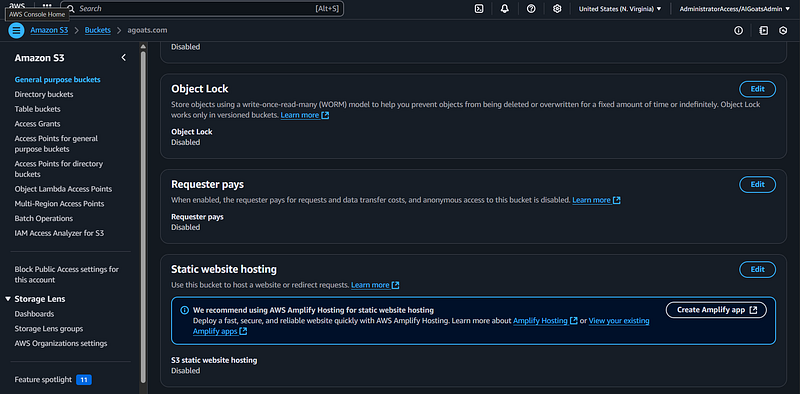
Step 57: Scroll down to the bottom of the page to the "Static website hosting" section and click the
"Edit" button.

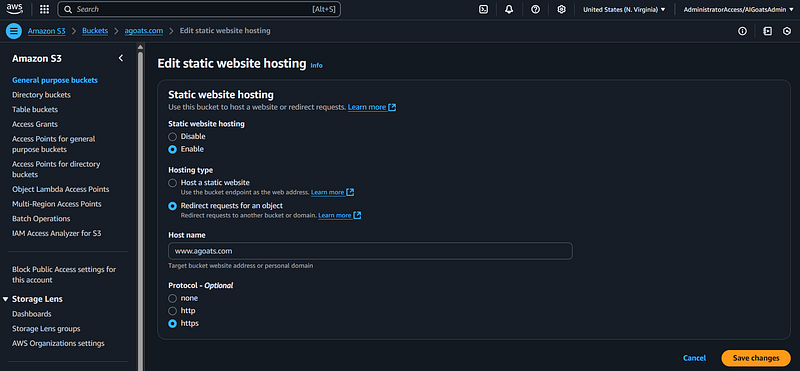
Step 58: On the screen, click the "Enable" radio button to enable static website hosting. When you
click that radio button, additional options should appear. Click the radio button that says "Redirect
requests for an object." You now need to type in the "Host name" box with the subdomain name. In the case of
the author, it is www.agoats.com. For protocol, select "HTTPS." Click the "Save changes" button.

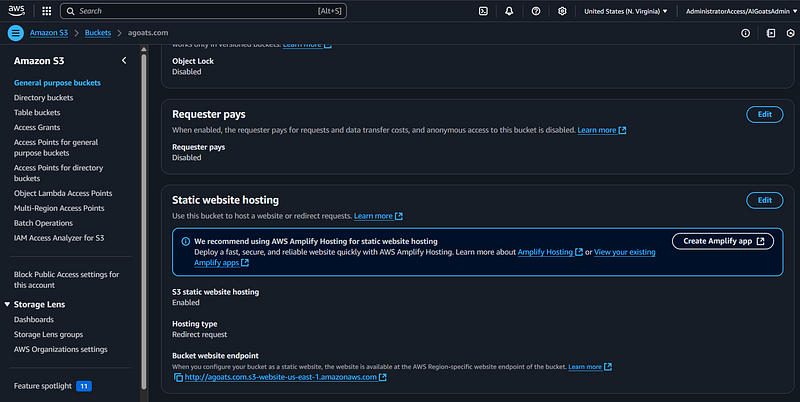
Step 59: You should see a message indicating your changes were successful. Note: you will need the
website endpoint later in this article as it needs to be entered into the CloudFront distribution origin
domain name field.

Step 60: If you go to the S3 bucket, choose the "Properties" tab, and scroll to the bottom of the
page, you should see the "Bucket website endpoint" URL.

Sub-Section - Configure CloudFront for the Subdomain:
Step 61: With the S3 buckets configured and the index.html file in the subdomain bucket, you now need
a CloudFront distribution service. This service will connect to your subdomain bucket and allow users to
access the index.htlm file without exposing the subdomain bucket to the Internet. It will also enable https
(vs http) transactions. On the main AWS Console page, type "cloudfront" into the search bar and click the
"CloudFront" service link.

Step 62: Click the "Create a CloudFront distribution" button.

Step 63: Under "Distribution options" leave the "Single website or app" radio button checked. Click
in the "Origin domain" box, you should see both of the buckets you previously created show up. Choose the S3
subdomain bucket. In the author's case, it is www.agoats.com.s3.amazonaws.com. Note selecting the bucket
should automatically populate the "Name" field.

Step 64: Select the "Origin access controls settings (recommended)" radio button. Under "Origin
Access Control," click the "Create new OAC" button. You will get a pop up screen. Leave the defaults and
enter a description if you like. The author entered "www.agoats.com S3 bucket OAC." Click the "Create"
button.

Step 65: You should see the "Origin access control" that you just created populate the field. You
should also see a banner warning you that you need to update the S3 bucket policy. You will do this in a
later step.

Step 66: For "Viewer protocol policy" choose "Redirect HTTP to HTTPS." The author chose to leave the
defaults for the other settings. Note that there are additional charges for using Origin Shield.

Step 67: In the "Web Application Firewall (WAF)" section, the author chose to "Enable security
protections." Note that enabling WAF has a cost, you should see a price estimate area appear if you choose
to enable WAF. While you can choose not to enable WAF, proceed with caution.

Step 68: In the "Settings" section, there is a subsection called "Alternate domain name
(CNAME) optional." Click the "Add item" button and enter your subdomain name. For the author, this is
www.agoats.com.

Step 69: For the "Custom SSL certificate - optional" section, click the drop down arrow and choose
the ACM certificate you created previously. The author left the other settings as default.

Step 70: In the "Default root object (optional)" field, type in "Index.html." This is the name of the
file you uploaded to the S3 subdomain bucket in an earlier step. Note make sure the name is exactly the
same as the file name in the S3 bucket.

Step 71: Leave the remaining fields as default and click the "Create distribution" button. Note that
standard logging is disabled by default. Monitoring and logging will be covered in a future article.

Step 72: You should see a pop up message box indicating your distribution was successfully created.

Step 73: If you click the "X" to close that message, you should see another message box indicating
that you need to update your S3 bucket policy. Click the "Copy policy" button. Once you do that, you will
notice a highlighted link that says "Go to S3 bucket permissions to update the policy." Click that link.

Step 74: A new tab should open in your browser, and you should be taken to the bucket policy screen.
Click the "Edit" button in the "Bucket policy" section.

Step 75: You should see a blank policy window come up. Paste the policy you copied into the window.
Note that if paste does not work, you can go back to the previous window and copy the policy again.

Step 76: Scroll down and click the "Save changes" button.

Step 77: You should get a pop up message indicating the bucket policy has been updated.

Step 78: Going back to the CloudFront screen, click on the "Tags" tab. As with previous services you
have created, add the tag key and value entries for the application you created. See the previous steps if
you need help.

Step 79: In the CloudFront screen, go back to the "General" tab. You should see an option called
"Distribution domain name." You can copy this item, paste it into your browser, and see if the content of
the Index.html file renders correctly.

Sub-Section - Configure CloudFront for the Root Domain:
Step 80: Now that you have a CloudFront distribution for the subdomain, you need one for the root
domain. This will allow customers who type in a root domain address to be routed via CloudFront to the root
domain S3 bucket which, per the steps above, will route their requests to the subdomain S3 bucket. On the
AWS Console Homepage, click on the "CloudFront" option. Note: the AWS Console Homepage saves the most recent
services you have visited.

Step 81: Click the "Create Distribution" button.

Step 82: In the "Origin Domain" section, you need to add the S3 Bucket Website Endpoint. Recall that,
for the Root Domain S3 Bucket, you enabled static website hosting. Please see the steps above if you need
help finding the bucket website endpoint URL.

Step 83: In the "Cache key and origin requests" section, change the "Cache policy" to
"CachingDisabled."

Step 84: You can leave all the other settings as default. Note: the author enabled the Web
Application Firewall (WAF), but there is a cost to this so proceed with caution!

Step 85: In the "Settings" section, Click the "Add item" button in the "Alternate domain name
(CNAME) - optional" section and type in your Root Domain. In the case of the author, it is "agoats.com." You
should also select the certificate you created in the "Custom SSL certificate - optional" section.

Step 86: Click the "Create distribution" button at the bottom of the screen.

Step 87: You should see a message indicating that the distribution was created successfully.

Step 88: If you go back to the main CloudFront screen, you should see both distributions. Note that
your newly created distribution may still be "deploying."

Step 89: As with previous AWS services, you should go into the newly created distribution and add
the Tag information so this resource shows up in your "Applications" section. See the steps above if you
need help.

Step 90: Once your CloudFront distribution is deployed, you can test it as you did the other
CloudFront distribution. Go to the CloudFront distribution, and in the "General" tab, look for the
"Distribution domain name." You can copy this into a browser, and you should receive an error message. Note:
the reason you receive an error message is because you have not yet modified Route 53 to route DNS traffic
to your CloudFront distribution; you will do that in the next section.

Sub-Section - Configure DNS Traffic in Route 53:
Step 91: In the AWS Console, navigate to Route 53.

Step 92: In the menu bar on the right side of the screen, choose the "Hosted zones" option.

Step 93: Click on the domain you registered. For the author, this was agoats.com.

Step 94: You should see several records which AWS created be default. You will need to create new
records to route traffic to your CloudFront distributions. Note do not modify these default records. While
you are on this page, you can navigate to the "Hosted zone tags" tab and add the Tags to tie the hosted zone
to the application you created.

Step 95: Click the "Create Record" button (see screenshot above). In the screen that shows up, click
the "Switch to Wizard" option. Note this option provides explanations to help guide you while you create
the record and is recommended for users new to domain name records.

Step 96: Ensure the "Simple routing" option is checked and click the "Next" button.

Step 97: Click the "Define simple record" button.

Step 98: A new screen should pop up that you need to fill out. In the record name field, type in
"www," the domain name should be the one you registered. Ensure the "Record type" field is "A ‐ Routes
traffic to an IPv4 address and some AWS resources" which should be the default. For the "Value / Route
traffic to" drop down field, select "Alias to CloudFront distribution."

Step 99: Click on the "Choose distribution" option box that appears. You should see only one option,
which is the CloudFront distribution you created in previous steps. Choose that distribution and click the
"Define simple record" button.

Step 100: You should see the record you just created on the main screen. Do not press the "Create
records" button yet, you need to define another simple record for the root domain first. Click the "Define
simple record" button again.

Step 101: In the "Record name" section, do not type anything…this is for the root domain, which is
already shown. As with the prior step, ensure the "Record type" field is "A ‐ Routes traffic to an IPv4
address and some AWS resources" which should be the default. For the "Value / Route traffic to" drop down
field, select "Alias to CloudFront distribution." As with the previous step, click on the "Choose
distribution" option box that appears. You should see only one option, which is the CloudFront distribution
you created in previous steps. Choose that distribution and click the "Define simple record" button.

Step 102: You should be taken back to the main screen. Note that there are two entries, and note that
the "Value/Route traffic two" fields are different for each entry. This is because each entry goes to a
specific CloudFront distribution. Click the "Create records" button.

Step 103: You should be taken back to the main screen where a text box will notify you that the
records were created. You should notice that the two records you just added are now on the list, along with
the default records AWS created.

Step 104: Now that you have updated the records, within a few minutes you should be able to open a
browser and navigate your website. You should try both the "www" and other version. In the author's case,
both www.agoats.com and agoats.com produce the same result (shown below).

Step 105: This completes this guide. You can now follow the other Step By Step guides that use AWS
Services to deliver a static website using other mechansims. These guides can be found in the main Step By Step Guides page.